
18.2- Image Based Tools
With the recent release of iOS 18.2, Apple continues to rollout new Apple Intelligence features. Compared to the weak and lackluster initial rollout with iOS 18.1 in late October, this second phase is more noticeable and a bit more impressive. However, I continue to struggle to find way to work Apple Intelligence into my life in ways that help me express myself and be more productive.
Genmoji–
Let’s start with Genmoji. This is one of the more fun features offered by Apple Intelligence, and could have been a breakthrough for adoption of Apple Intelligence, however it doesn’t do much. As such, it doesn’t really move the needle.
If you watched this catchy ad by Apple and tried to generate any of these Genmoji’s, you probably didn’t get any of the same results.
For example, I tried to regenerate the tomato spy emoji and I got something VERY different. Not only did I get nothing related to a tomato, I got promoted to use my sisters photo as a reference. Which is absolutely bizarre to say the least.

The 12 sided die only generates a standard 6 sided die. Can of worms can get some decent results, but it requires a relatively extensive prompt. More extensive than is suggested by the ad or promotional material or even the size of the search box. You can get some decent results, like the one I generated for a dumpster fire (full disclosure, this has quickly become one of my favorite emojis to send) but some options have oddities- like adding a smiling face to the dumpster.
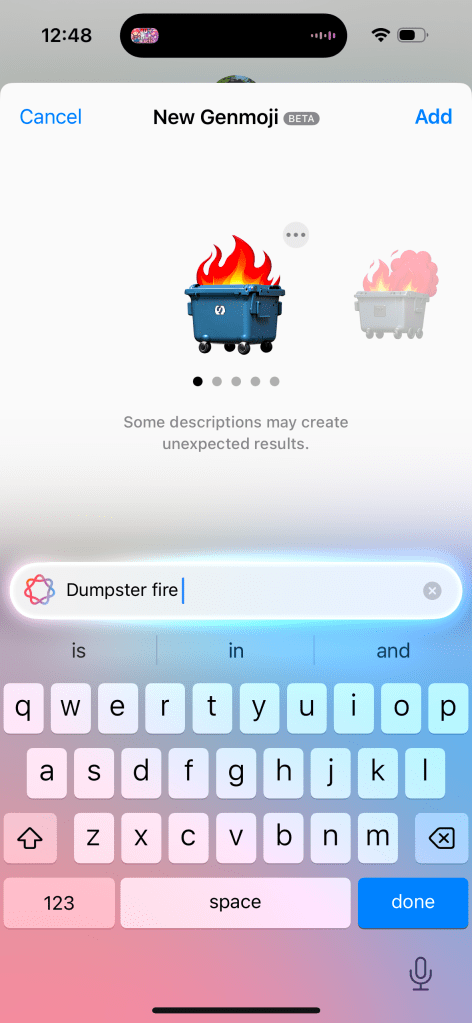
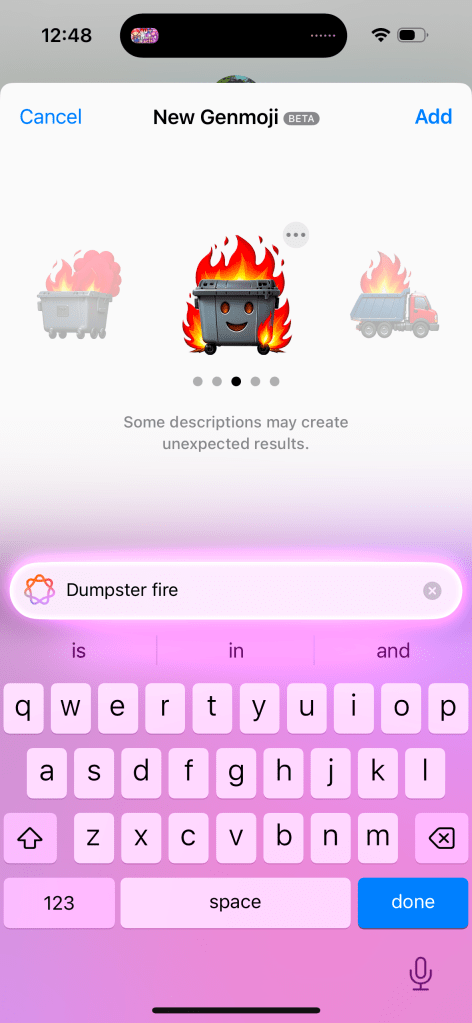
The interface for Genmoji is functional and easier to find than the Writing Tools in my opinion. But I don’t think Apple has nailed this. You open your chat or text field and hit the Emoji button. Then you need to hit the button that has the Emoji face with a plus icon and the Apple Intelligence glow around it, and you can enter your prompt. This tiny button is next to a massive search bar to search for an already existing emoji.
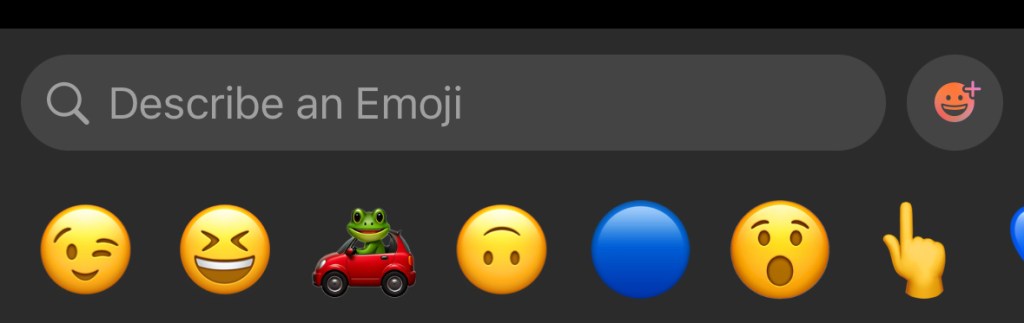
I’m not sure why the search bar and the Genmoji button are two different things. I feel like it’d be more intuitive to go search for an emoji and then if it finds a match, it’ll present that to you. But if it can’t find a match, then it’ll generate an emoji to use. Maybe this can be improved upon in iOS 19.
The final thing to note about Genmoji is that it’s only on iOS and iPadOS. macOS is excluded at this time for some reason. It’s an odd omission considering all the previous Apple Intelligence features landed on all platforms at the same time. Not sure why this one didn’t. Also sending Genmoji via Messages to anything but another iMessage user is not a great experience. It’ll just send a large PNG picture to Android users and are entirely unavailable in other apps.
Image Playground
This is one of the most un-Apple like implementations of a feature I’ve ever used. And people beyond me have pointed this out. The icon does not convey it is the quality of an Apple created app. And when using the app, it doesn’t feel like a first party Apple app either. Some people on Reddit and Bluesky have even mistaken it as a scam app or one of those microtranscation filled kids games from the App Store.


This app is interesting. When you go to generate an image it’ll ask you to enter a text prompt (just like Genmoji, though note, you can’t create Genmoji in Image Playground), select a person to use as a reference, and you can select some pre-curated options to customize your image further without needing to enter a specific prompt. These options range from things like”disco” or “winter” to costumes like “astronaut” and chef”, accessories like “sunglasses”, and places like “city” or stage”.
Selecting just one option or a person or a single prompt will allow the model to begin generating your image. You can select an animation style (think Pixar) or an illustration style (think like a holiday card). To Apple’s credit, they do not allow you to generate a photorealistic image. So this really is more of an entertainment thing that is good for laughs more than anything.



The results aren’t great. I’ve included some examples above. The first one is using the disco, fireworks, starry night, and text prompt “add the text 2024”, and it looks alright. I generated this with the intent of using it for a year-in-review- kind of post. The second is based on a photo of myself and the “astronaut” and “starry night” prompts. It’s fine, but my hair is very, very wrong stylistically (this has been widely reported as an issue with Apple Intelligences model) and its on the outside of the same helmet. In addition, the skin around my neck is clearly visible and not covered by the space suit. The third is a couple text prompts describing a modern home with hardwood floors and at a glance it’s nice. But when you take a closer look you can see all kinds of errors with the legs on the table, the pillows on the couch, and the table on the left looks weird.
The real takeaway from Image Playground is it has no useful purpose. What would you want to use this app for? I haven’t found a purpose and neither has anyone else online either.
Image Wand
This is basically an extension of Image Playground. The difference is instead of exclusively using text and suggested themes to generate an image, you can draw something in an app (like Notes) using Markup and then circle it to give Image Playground a head start on what you are looking for. You can then augment the sketch with text prompts, or if Apple Intelligence cannot determine what your drawing was, it may ask for more information about your sketch before generating more options.
Putting aside the creative encroachment for a moment, I have two issues with this feature. The first is that I frequently need to give more than just my sketch to the model before it can start generating something. An elementary drawing of a house asks me to describe to what I’ve drawn. That’s pretty disappointing and not very productive.
The second is that it just as often takes my sketch and goes a mile with it. My elementary house sketch that I really wanted to use Image Wand on to make look a little nicer, just generates an entire house design concept with the AI generated image oddities we’ve all seen before online or in the Photos Cleanup Tool. The result I get often bears little resemblance to what I started with. I often complain about Apple Intelligence not doing enough, but this is a case of it going too far without a way to reel it back in.
ChatGPT Integration with Siri
I don’t have much to say about this one since I have this turned off as I don’t want to share any information with Open AI and, as this post has probably indicated, I’m just not an AI fan in general. But the idea here is that if you engage with Siri in a way that Siri can’t respond to, that data will be sent to ChatGPT and that information will be supplied back to you via Siri. It’s a crutch to making Siri look more powerful than it actually is.
While on this subject, Apple has been super disingenuous with the Siri improvements in iOS 18, their marketing of the iPhone 16, and Apple Intelligence. All the marketing advertise…
- The new Siri interface, which is worse than the orb
- New Siri functionality, which does not exist
- And uses the Siri + ChatGPT to make Siri look better than it actually is
This is a trend that is very un-Apple like and I hope does not return with iOS 19 and the iPhone 17 lineup.
Writing Tools Improvements–
While Writing Tools was first introduced with iOS 18.1, Apple has gone back and improved this set of tools a little bit. The missing ‘Describe Your Change’ feature, where you could describe a type of change to make to your text is now available. This can be achieved by using Apple Intelligence, however it can kick your request and the associated text to ChatGPT if the request you make is outside of Apple Intelligences capabilities. The benefit here is users can get a better result, or at least a result more in line with their expectations, but the downside is confusion to the user as to what Apple Intelligence really is. If Apple Intelligence is marketed as a rival and superior option to ChatGPT, Google Gemini, or Meta AI, but Apple Intelligence regularly kicks you out to use one of those options, then what’s the point of Apple Intelligence?
I do want to note that at the time Writing Tools was introduced, I pointed out just how difficult it was to even find or use and this hasn’t changed substantially, but is a little bit better for people who use Pages. Pages now has a dedicated Writing Tools button in the toolbar- making it easier to access but not any easier to use. For example, if I describe a change but don’t like the result, it’s not easy to go back and change my prompt. One of the options for advanced proofreading I previously complained didn’t work in real time and it still does not. I’d love to know just how widely used these tools are because I’d be quite surprised if it is widespread.
Visual Intelligence
This is an interesting feature in that it is one of the few Apple Intelligence features exclusive to the iPhone 16 and iPhone 16 Pro. It’s not on iPhone 15 Pro. The way this is invoked is by click and holding the Camera Control button . I do not know why, but limiting this feature to just iPhones with Camera Control is kinda dumb.
I also don’t think this feature is very impressive. After you open Visual Intelligence you are presented with an Apple Intelligence animation-ified Camera interface where you can click an ‘Ask’ or ‘Search’ button to ask ChatGPT about what you’ve taken a picture of or do a Google Image search for what you’ve taken a picture of. Neither of these, obviously, utilize Apple Intelligence. It’s the ChatGPT problem all over again from the Writing Tools.
You can get information about things you’ve taken a picture (like what breed a dog is) but I don’t think this uses any new Apple Intelligence functionality, but rather piggybacks off the Visual Look Up feature Apple introduced to the Photos app in iOS 17. Visual Look Up works by scanning your photo and identifying what is in the photo and provides you Siri Knowledge and related web results on what has been identified.
Apple Intelligence Mail Categories
This is maybe the best use of Apple Intelligence so far. The Mail app has gained four inbox categories- Primary, Transactions, Updates, and Promotions. Then based upon the emails you receive, Apple Intelligence will automatically sort your mail into one of those four categories. The Priority category from iOS 18.1 remains as a sub-category within the Primary category. Visually this is really nice and can help to have those promotional messages that you don’t need to know about but don’t want to miss out on either in your mind without feeling like you need to take action on immediately.
The bad news is twofold. First, Apple Intelligence doesn’t sort these messages by message content, it still bases its sorting on who the sender is. If I place an order from Dominos for a pizza, I’d expect the order confirmation with the delivery time to be shown in Primary as a priority message since it’s message contents have a time associated with it. But the promotional “get your free pizza” email, that I’d expect to another one of the categories like Promotions. At the same time, maybe Updates is more appropriate? It’s not a Transaction, but could lead to a transaction.
It feels like Apple put themselves into a corner by pre-selecting these categories rather than having Apple Intelligence dynamically create categories based upon what is in your inbox. And basing the categorization by sender creates problems for different kinds of emails you can get from the same sender.
The other problem is that this Mail app is exclusive to iOS. You can’t view your email with these categories on iPad or Mac. This is especially disappointing on Mac where most emails are created and viewed. And it’s just a baffling omission from iPad since iPadOS and iOS are virtually identical. Guess we’ll have to wait for another future software update.
I will end on one last positive. While I have issues with the way Apple Intelligence sorts my mail, I do overall like the feature. But if you don’t, it is super easy to switch back to the traditional single-inbox experience. Just tap the More button in the upper corner and you can instantly switch between the two styles.
Overall Thoughts-
Based on my extended time with the first wave of Apple Intelligence features and the overall impressions of the second wave of features, there are a couple trends that are becoming very clear.
First, the investment Apple has made into Apple Intelligence has seemingly not been worth it and I struggle to see how these image generative tools benefit users or help Apple build future products. Look at Image Playgrounds- an app that has no functional purpose to exist and is commonly mistaken as a scam app. Image Wand is a feature that is sure to met the ire of Apple’s creative customers. And if so many of the Apple Intelligence features have to be sent to ChatGPT, what is the benefit of Apple building their own AI models? Other companies have show that AI products like the Rabbit R1 and Humane AI Pin are just kinda pointless. So there’s nothing hardware or platform wise Apple can build with AI.
Secondly, it is becoming clear that users do not understand what Apple Intelligence is or how it works. I saw a Reddit post a month or so ago of someone who “hacked” Apple Intelligence onto their iPhone 13 and demoed the new Siri animation and re-write features that used ChatGPT, not Apple Intelligence. What people thought they were getting with Apple Intelligence was a chatbot integrated into Siri and what we got was very much not that. Leaving users confused about what AI even does or is for. While Siri improvements are supposed to be coming next year, the damage has likely been done to Apple Intelligence’s reputation. And all the Siri improvements are dependent upon adoption of the App Intents API Apple has made available. Back in 2016 with iOS 10, Apple greatly expanded the uses of the Siri API so more developers could plug their apps into Siri. That never happened though and many of the features Apple showed at WWDC that year never shipped or have been discontinued.
Third and finally, very few Apple Intelligence features are well implemented. This is incredibly concerning from a company like Apple who got to this point by shipping complete and polished experiences that are intuitive and easy to use. Nothing about any Apple Intelligence feature has been complete (as evidenced by its piecemeal rollout), polished (as evidenced by how often they have to rely on competitors AI models to do work for them), intuitive (as evidenced by how hard it is to find a lot of these features in the first place), or easy to use (since you have to already know how to prompt AI to get a certain result). Apple has been under fire for years with questions about their ability to deliver experiences like they did in the Steve Jobs era and I am more confident than ever that Apple has indeed lost their way and are just chasing trends.





 Soul of Apple