Apple Watch Independence
A year ago, Bloomberg’s Mark Gurman released a story about how a few years ago Apple was working to bring Apple Watch compatibility and the Health app to Android devices before ending the project so that the company could protect iPhone sales.
I suspect Apple began working on this feature in 2018 and while we didn’t get- and still haven’t gotten- Android support, I suspect these development efforts did start to materialize with the introduction of the dedicated watchOS App Store app in watchOS 6 (2019), the introduction of Family Setup in watchOS 7 (2020) and was probably meant to be part of watchOS 8 (2021) before getting scrapped.
watchOS 8 placed a pretty big focus on communication with the introduction of features like a redesigned Photos app to make it easier to view and share photos with others. The ability to share music with others in the Music app. A redesigned Home app to make it easier to control your smart home from just the Apple Watch. A new Contacts app to add new phone numbers to your contacts list. And Find My to locate your devices and friends.
All of these are features you’d want to add if the goal was to make Apple Watch owners able to work independently if they couldn’t rely on having an iPhone.
Did you take a photo on your Android and save it to iCloud? Now you can easily share or view on Apple Watch. Want to stream Apple Music without a phone at all, but share a really cool song you want a friend to know about? Share it from Watch. Did you meet someone new and want to swap numbers? Just open up the Contacts app and add away. Misplace your AirPods? Now you can find them with Find My on the Watch.
But this isn’t what ended up happening. Instead we got the features, which is nice, but can more easily and reliably use iPhone to do them instead. And since you need an iPhone, there’s no reason to use your Watch.
This is part of a troubling trend Apple has displayed over the past several years- both from an innovation and business perspective. The trend is Apple doing everything they can to protect and increase sales of iPhone, even if it comes at the expense of other Apple products.
If we stick with Apple Watch for a moment, this approach means that the install base of Apple Watch can only ever be as big as the install base of the iPhone. So if iPhone sales ever stall or decline, all other Apple hardware and services growth potential, as a result, stall or decline as well.
This creates a system where you need one specific Apple device (iPhone) in order to gain entry to the wider ecosystem, rather than creating a system where it doesn’t matter what Apple device you start with and using that to gain entry to the wider ecosystem.
Echos of the Past: The “Post PC Era”
In the early 2000s, we were in what Apple described as the “PC Era”, a world in which the personal computer (usually a desktop, but could be a laptop) was the center of users digital lives. Every new device or service Apple introduced relied on the use of a PC. iPod had to be synced, backed up, and purchases made on iTunes (which required a PC) had to be transferred via a wired connection. And when the iPhone rolled out, it worked the same way. It had to be managed from a PC. Even the iPad at launch had to be managed in this way. But starting in 2011 with the introduction of iCloud, Apple brought PC independence to their devices. You could buy an iPod, iPhone, or iPad and login with your Apple ID (now Apple Account) and get all your information right from the cloud. Commonplace today, but in 2011, a pretty bold idea. This independence from the PC helped to spur sales of iPhone and iPad and led to what Apple called the “post PC era”. Or as we can probably more accurately call it, the “mobile era”. The mobile device in your pocket had the same if not more importance as the PC did in the previous decades.
What we are seeing now is an echo of the past. We are moving into what can be described as a “wearable era”. People want devices they can wear. Watches, rings, glasses, headsets, wireless earbuds, and these are just the most common devices right now. Some are more developed than others, but growth is expected in all these areas over the coming years. Apple is hold fast to the mobile era and requiring their mobile devices to be a gateway to the wearable technology, but many companies are bypassing Apple entirely and just building these devices to work independently of what phone you have. Over time, unless Apple changes, I worry they’re going to get shoved out of the “wearable era” because they’ll never allow their wearables to get good enough to replace the iPhone.
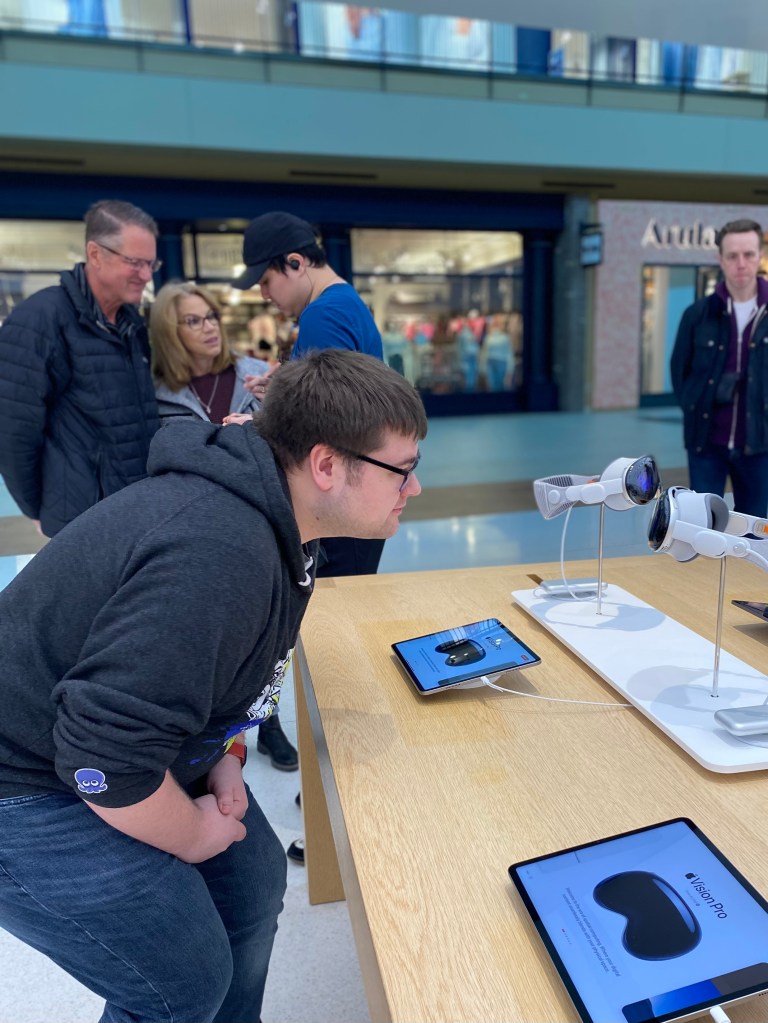
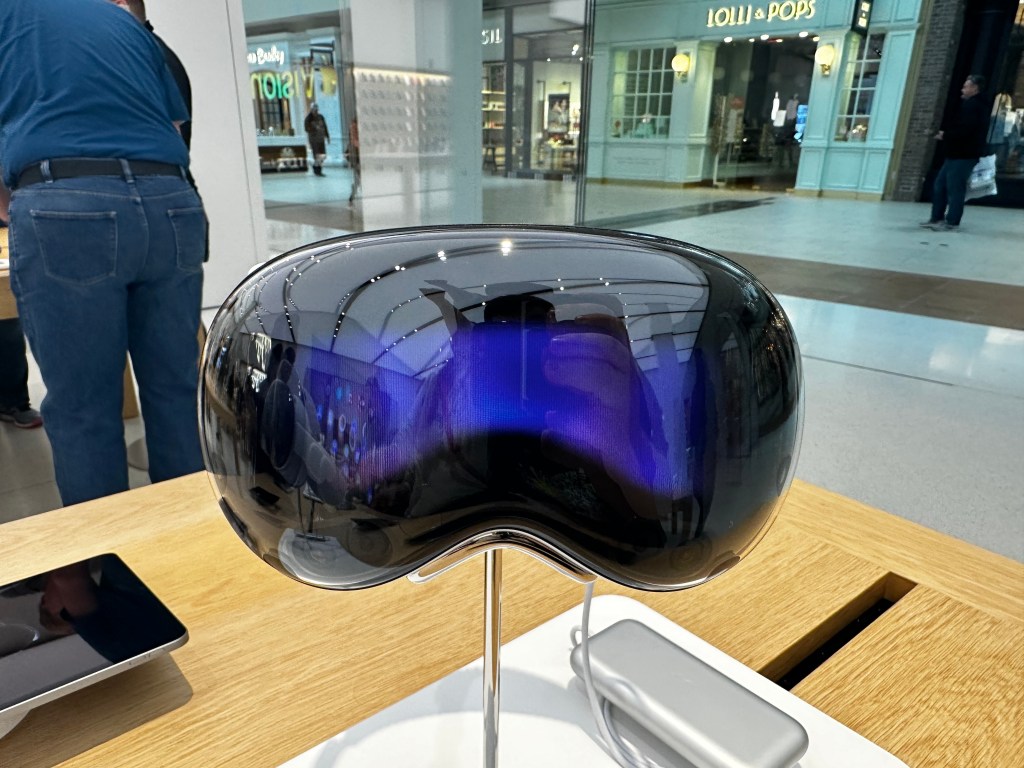
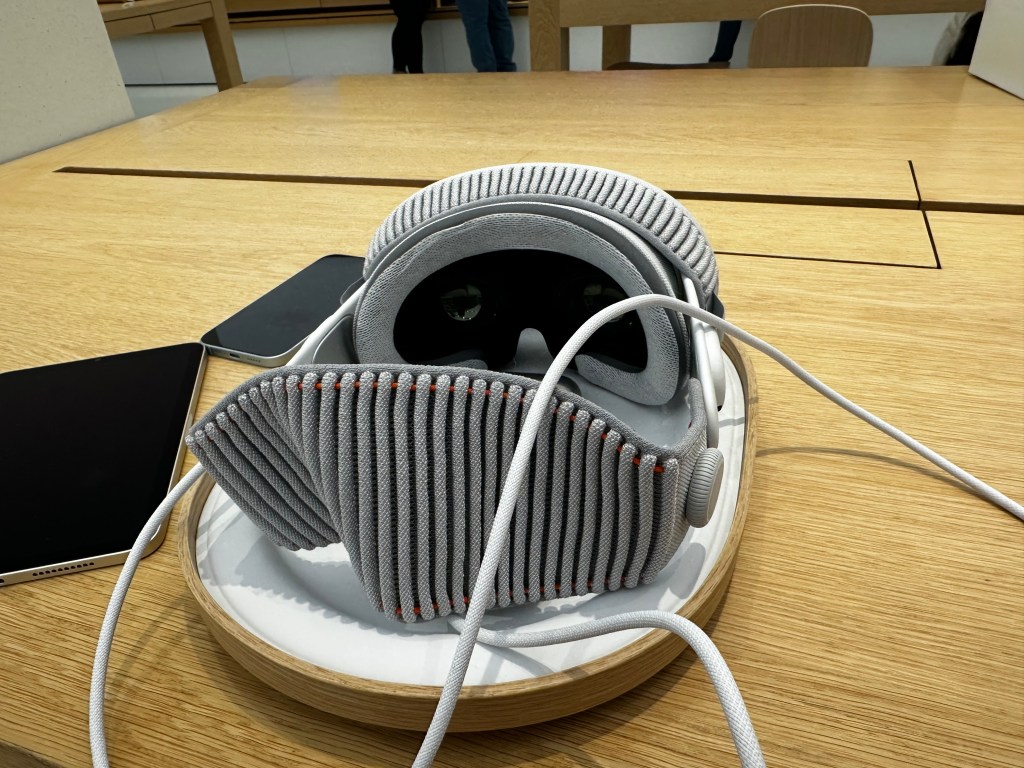
I can extend the same argument to home devices like HomePod, which require an iPhone or iPad to setup and connect to the internet. As growth of smart home accessories increase, Apple risks missing out on big parts of the market by not supporting other platforms or taking a leap over the competition by not requiring a mobile platform to setup at all. AirTag requires an iPhone or iPad to setup and locate, it can’t be done on any other device or platform. I can even make this argument about Apple Vision Pro, despite Apple claiming Apple Vision Pro is a “fully independent computer”. It really isn’t since you need an iPhone or iPad with Face ID to scan your head and get a head band size. Some Apple device is required and specific models at that.
The Loss of the Self-Canibalization Mantra
Steve Jobs once said, “If you don’t cannibalize yourself, someone else will”. This idea is all over the early 2000’s products Apple put out. Howard H. Yu summarized this well in his 2016 essay, “Apple’s dwindling sales show importance of self-cannibalization”. He wrote, “In 2005, when the demand for the iPod Mini remained huge, the Nano was launched, effectively destroying the revenue stream of an existing product. And while iPod sales were still going through the roof, Jobs launched the iPhone which combined iPod, cell phone, and Internet access into a single device. Three years after the iPhone’s launch, iPad made its debut and raised the prospect of cutting into Mac desktop computer sales.”
This mantra is no longer at Apple. Nothing is allowed to devour the sales of the iPhone. It’s the reason why Apple Watch, no matter how capable the hardware becomes or advanced the software gets, it’ll always have to play second fiddle to iPhone. It’s why users can’t even pair an Apple Watch to an iPad; protect the iPhone. It’s why Apple News Plus Audio Stories are only on iPhone. It’s why Apple backtracked on Apple Fitness Plus requiring an Apple Watch, so iPhone users could pay the subscription fee. It’s why things like AirPods pairing is seamless on iPhone but not on Mac. Or why AirTag setup isn’t allowed on a Mac. Originally, Apple Arcade titles had to be playable on all Apple devices, but after a year or so, they backtracked and allowed games to be iPhone only.
Everything has to ship on iPhone to protect its revenue. Nothing can cannibalize the iPhone. When it was introduced in 2007, the iPhone changed the way Apple thought about their products. 18 years later, and it seems like the thinking is still the same.
Addendum
Since initially wiring this post, Apple has displayed another instance of this behavior. On February 4th, Apple introduced the Invites app. An iPhone only app that allows you to create and share an event invite to people via iCloud. This app does work on iPad, but in the classic ‘iPhone mode’. This trend is reminiscent of other recent Apple developed apps. The Sports app is iPhone only. Journal is iPhone only.
Apple Music Classical initially launched iPhone only in March 2023 and was brought to iPad 8 months later and just 3 months ago was expanded to CarPlay and work with Siri. It continues to be unavailable on Watch, Apple TV, Vision, Mac, Android, and the web. All platforms that Apple Music is already available on.
Some apps, even though they may be available on multiple platforms, don’t function the same. Audio Stories, a feature available to Apple News Plus subscribers, are only available on iPhone. Not iPad, Mac, Watch, or Vision. Fitness on iPhone has a suite of features including viewing your Activity ring history, trainer tips from the Apple Fitness Plus trainer team, and ring sharing activity. None of this available on any other platform.
It goes to show not only a shift in the way Apple is trying to protect the iPhone, but a shift in the way Apple approaches app development. That anything other than iOS isn’t worth creating apps for. What kind of message does that send to the developers that Apple is trying to court to create visionOS apps when Apple themselves don’t see value in developing for it?


























 Soul of Apple