
watchOS 10 is being billed by Apple as “the biggest update since the introduction of Apple Watch” and I don’t think that statement is too far off the mark. There are changes to virtually every element of Apple Watch. Over the past month or so I keep glancing at my Apple Watch and smiling, gaining a sense of pleasure having it on my wrist. Rather going though everything new in watchOS 10, I want to do something a little different. I want to point out some specific features that have made me feel so happy to be wearing this device on my wrist.
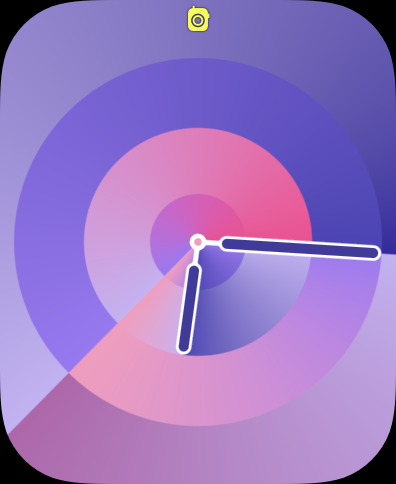
First, the watch faces. This is the first thing you see every time you glance at your wrist. Even for people who don’t wear an Apple Watch, the face is the most visible element of your watch. WatchOS 10 has (so far) added two new faces. The less impressive of the set is Palette. It’s similar to other faces Apple has introduced like Gradient or Color- it features a dial that changes color as the hands move around the dial. The four corners of the display feature the rich complications that users have come to expect from most other Apple Watch faces. Though for this face in particular, I’m not sure you need to use them. It looks better without complications. In past versions of watchOS, using a face like Palette would mean you are prioritizing an esthetic over information density, but watchOS 10 has a solution for this. More on that in a moment.


The other new face is Snoopy. It features Snoopy and Woodstock from the Peanuts cartoon doing something a little different ever time you raise your wrist. When lowered, it shows the two sleeping on top of Snoopy’s doghouse. But when raised, you are treated to any number of unique animations. From Snoopy blowing a gum bubble and it exploding on his face and getting stuck on the hour hand, Snoopy doing his classic dance across the display, or Snoopy sliding down the hands like a fireman pole. It brings a smile to my face every time. And there are multiple color backgrounds you can select from as well. There’s the less interesting newspaper (giving you a background that looks like it was printed on a newspaper), Lucy Blue, Blanket Blue, Peppermint Patty, Woodstock Yellow, Great Pumpkin, and Doghouse Red. It’s a great callback to characters and props from the cartoon.
Since watchOS 7 in 2020, Apple has started holding back the introduction of new watch faces until that years Apple Watch models are revealed, so I do expect more new faces to become available once watchOS 10 officially launches to the public.
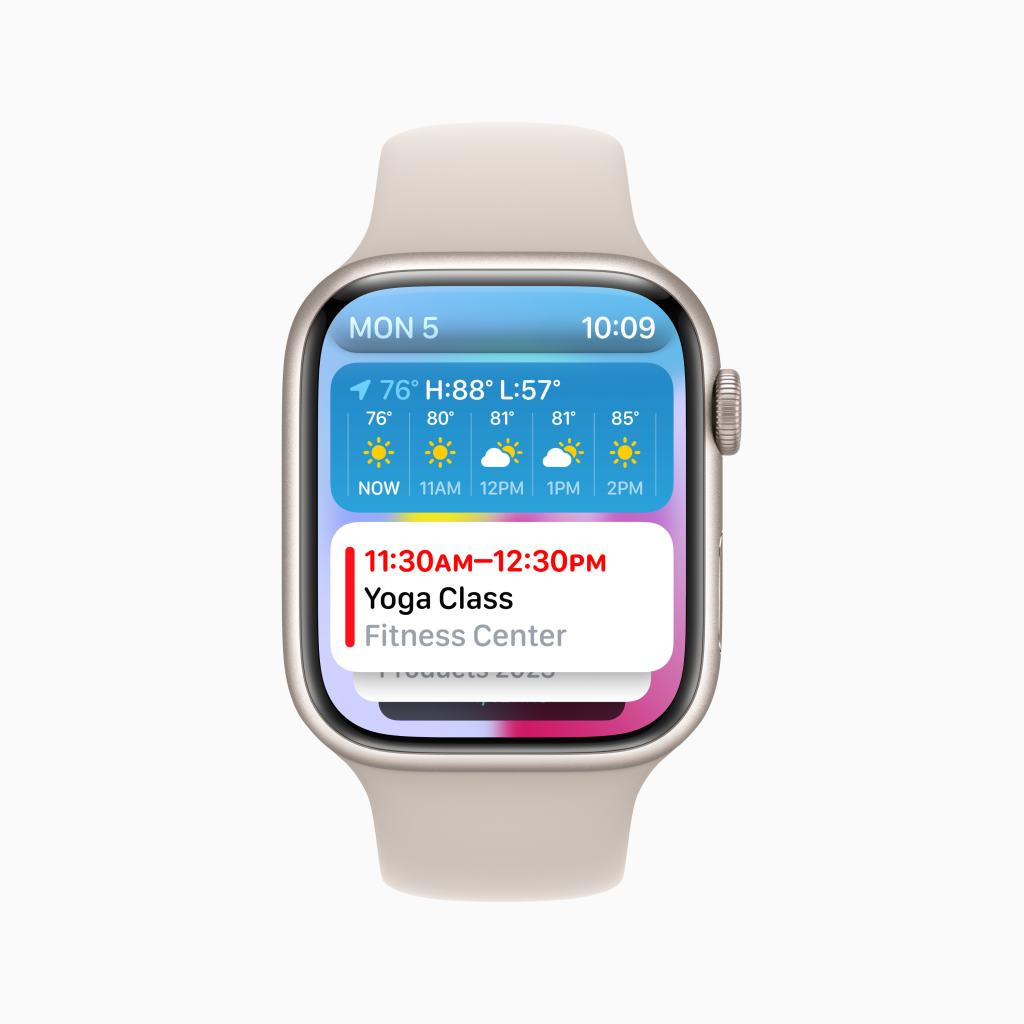
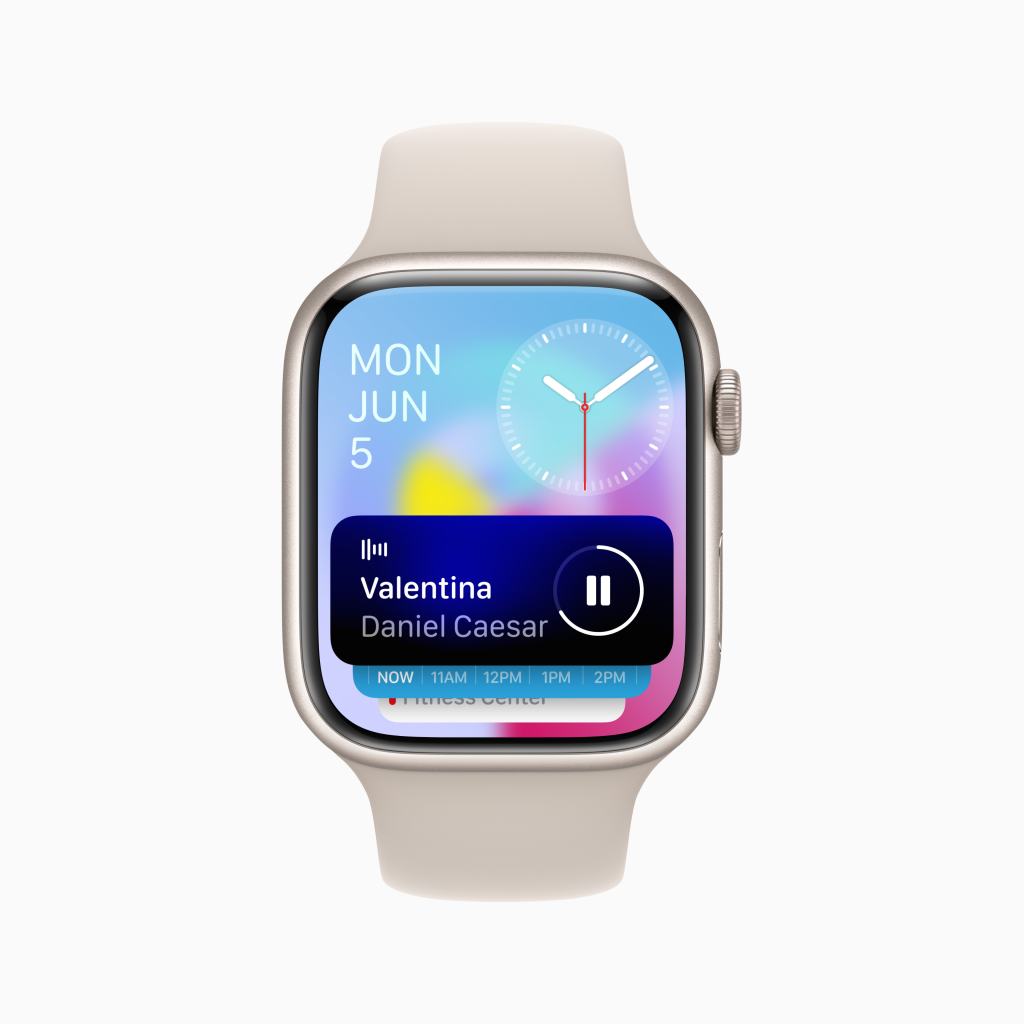
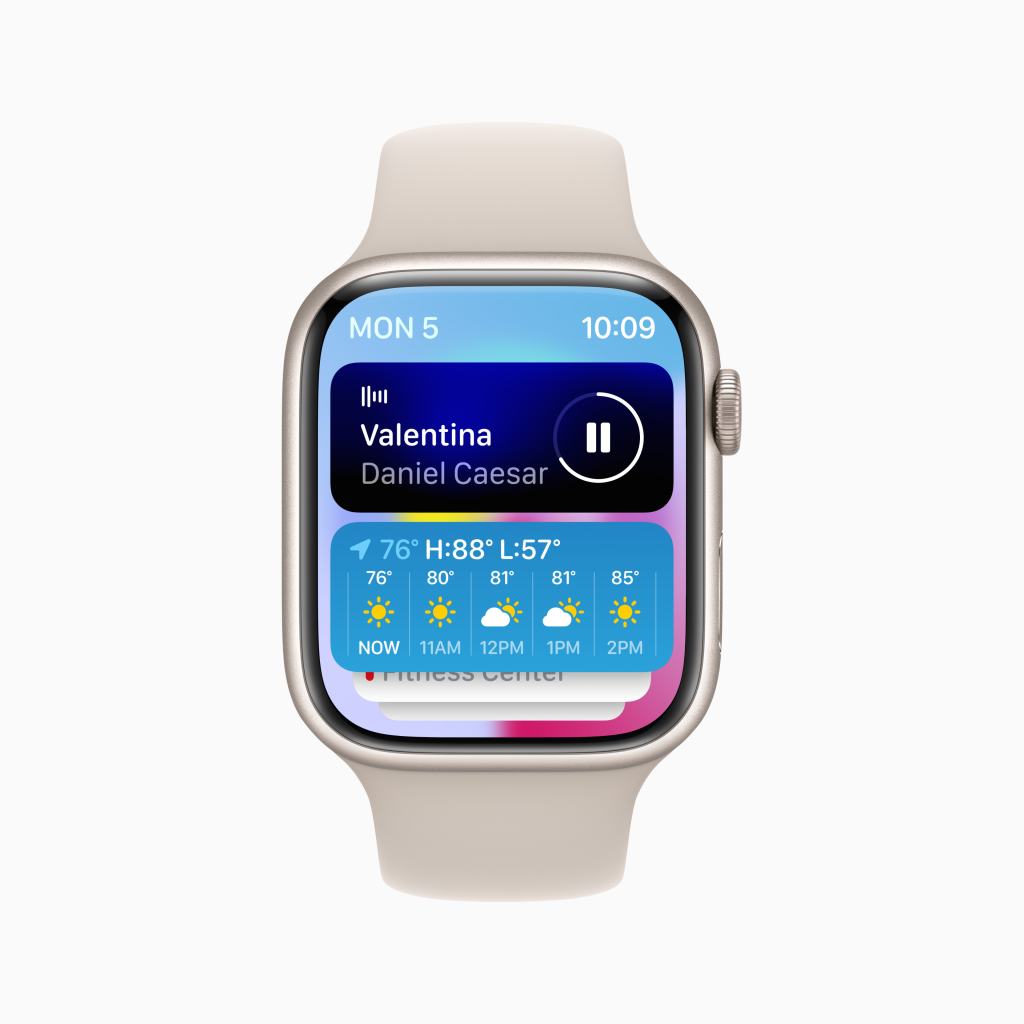
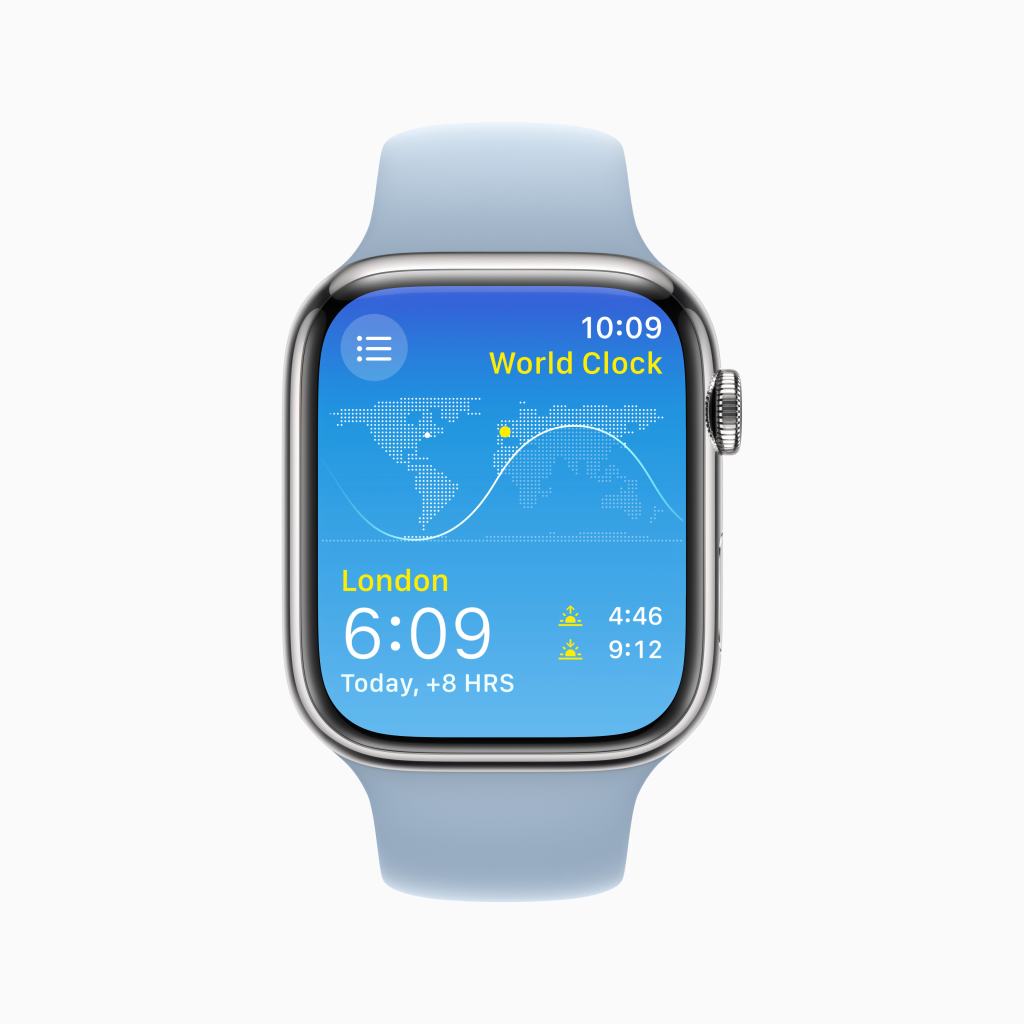
Circling back to that point I was making earlier about prioritizing esthetic over information density, watchOS 10 has a new feature that frees you up to use whatever watch face you like without having to sacrifice the information you can get at a glance. If you like the super information dense faces like Infograph or Modular, you can keep using them! But if you want to use Snoopy or Contour which feature few to no complications, you can and use the new Widget Stack to get that glanceable information you still want. The Widget Stack is all new to Apple Watch, but is very similar to it’s counterpart on iOS. In fact, many widgets already on iOS look very similar if not identical to their watchOS widget counterparts. And these widgets are on every face now. Simply swipe up or use the Digital Crown to reveal the widget stack and browse your widgets.


Currently only Apple apps are available to use, but once watchOS 10 is available to the public, developers will likely begin updating their apps to offer up a widget. I love having the ability to quickly turn the Digital Crown and have my widgets popup and offer up rich information in ways that most complications on most Apple Watch faces simply can’t match. And when I’m done looking at the information I need, I turn the Digital Crown again and it simply tucks away again with subtle but greatly appreciated Taptic feedback.
I do want to draw attention to one of these widgets in particular. It doesn’t have a specific name in watchOS, but its main purpose is to hold three regular sized complications, so I will refer to it as the Complication Tray. The Complication Tray can hold three complications to offer up information to you, like the status of your Activity rings, or quick access to an app like Home. Any widget can be pinned to the top of your stack, so I have this one pinned so I can always quickly no matter where I am on my Watch, access the Workout app, see my Messages, or control my home.
The Widget Stack is dynamic as well. Throughout the day based on the time or what you are currently doing, it will update with widgets that are timely. For example, when listening to music or a podcast, the Now Playing Widget will appear on top- before even your pinned widgets. Or if a Workout is in progress, you can quickly pause or resume it right from the Widget Stack.
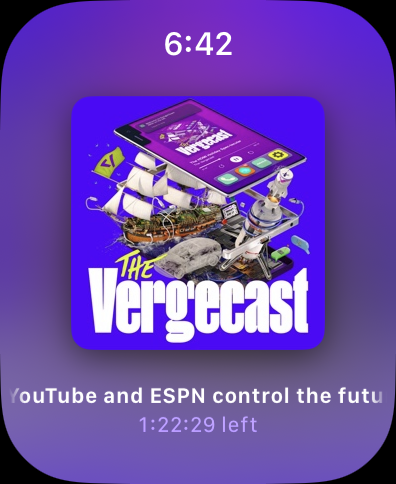
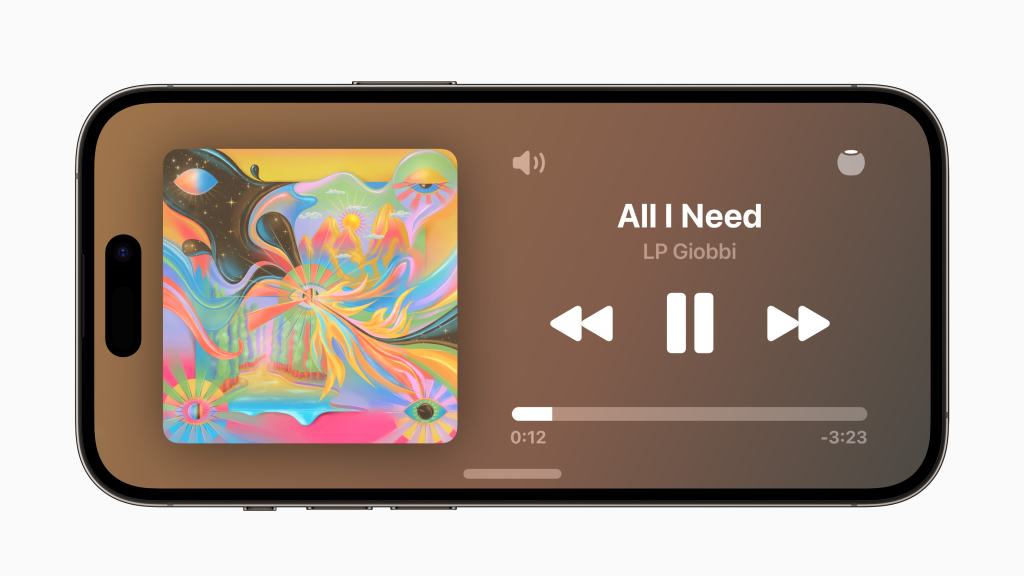
One the subject of Now Playing, this is a much nicer experience than past versions of watchOS. Previously, you just had a big Play/Pause button in the middle of your screen with some AirPlay controls and one of those infamously non-detailed … buttons. The title of your audio would scroll by on the top and it just looks basic. In watchOS 10, Apple has made this a much more pleasant experience while retaining functionality. Your controls are all in the corners of the display, allowing you to quickly rewind or fast forward, play/pause, close the Now Playing window or change your AirPlay settings with a detailed … button. The album art also fills the middle of your screen and can even be tapped to take it full screen just like on iOS. It’s fun to discover even if its not super practical.
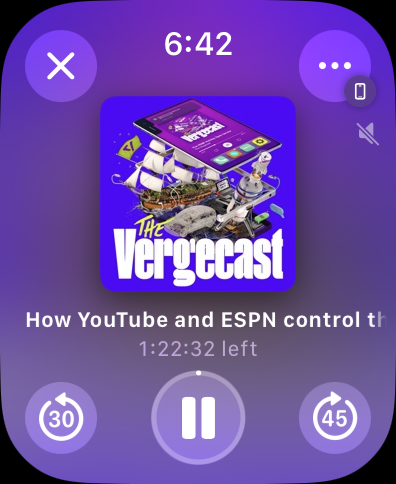

These bigger buttons and controls in the corners of the display are actually a very common element in watchOS 10 as virtually every single app has been redesigned to look beautiful, offer increased functionality, and communicate more information. Activity for example puts access to your Weekly Summary, Competitions, and Trophy Case right in the corners, removing the need to swipe across the display multiple times to get to what you wanted. Turning the Digital Crown no longer puts you into a long list of information, it instead hilights each of the three rings and offers up deeper information on that specific ring.
Weather has full screen weather effects just like the Weather app on every other Apple platform and it looks great. Great enough to be its own face in watchOS 11 I’m sure… It defaults to a current weather overview but using the Digital Crown can show the forecast for the next few hours or even the next 10 days. Tapping the button in the upper right corner lets you quickly select what specific weather information you want- precipitation, humidity, wind, etc…
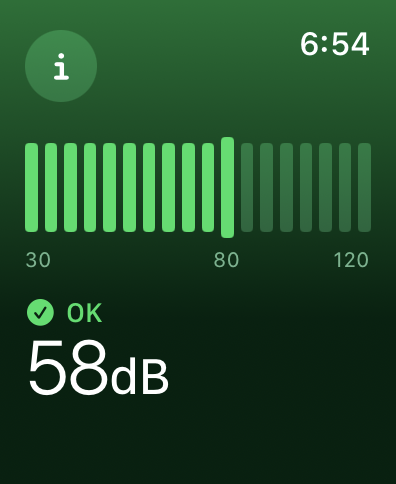
And Noise no longer has a bar that indicates how loud it is and then makes you scroll down a long list to find how safe your current level is. The full screen is utilized to indicate your current noise level with color communicating that information. More detailed information is hidden behind the “I” button but many people won’t need that level of detail anyway. So moving it out of the way is perfectly fine.

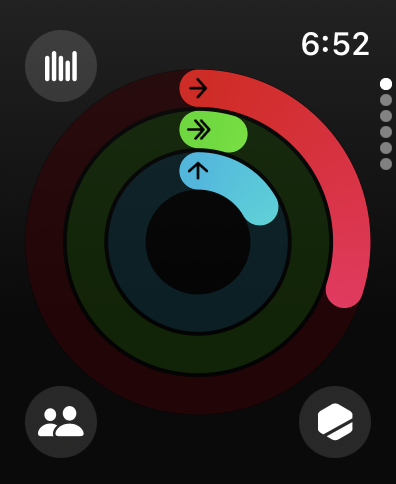
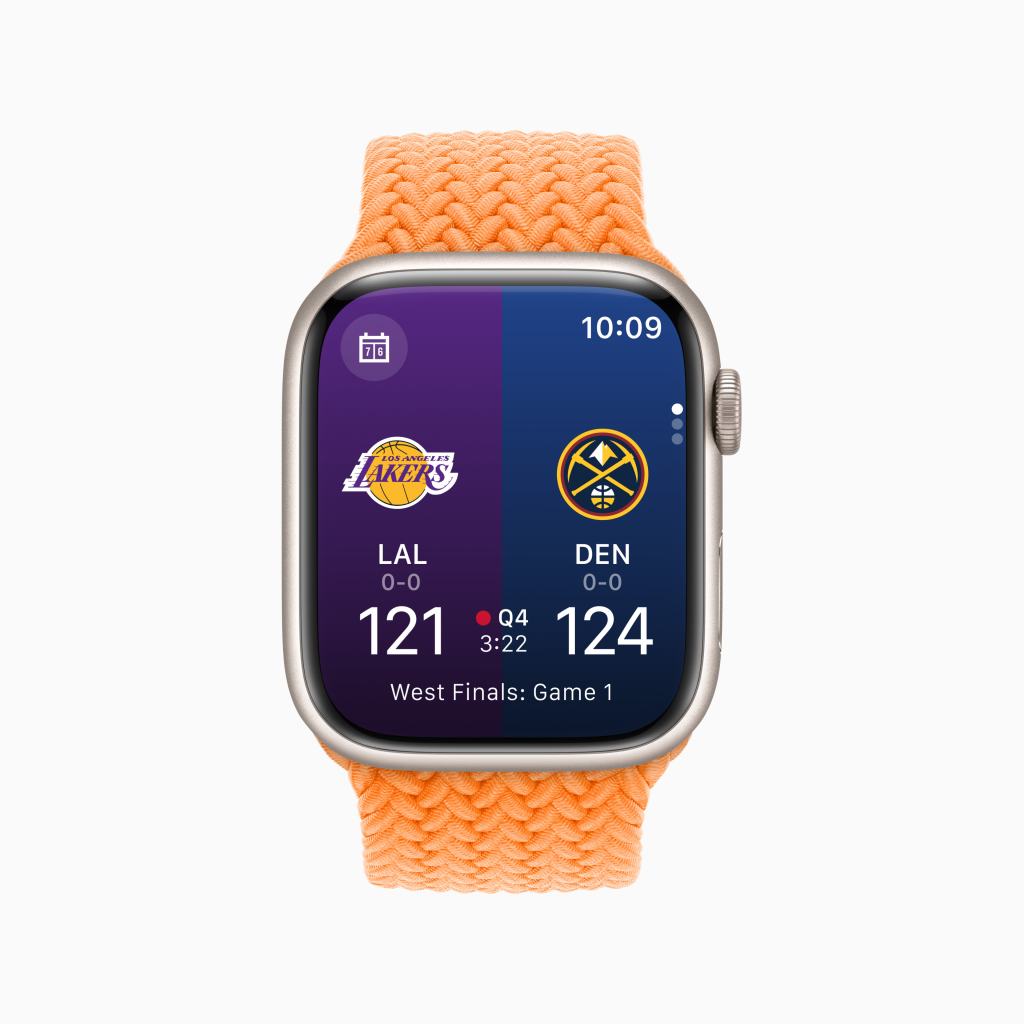
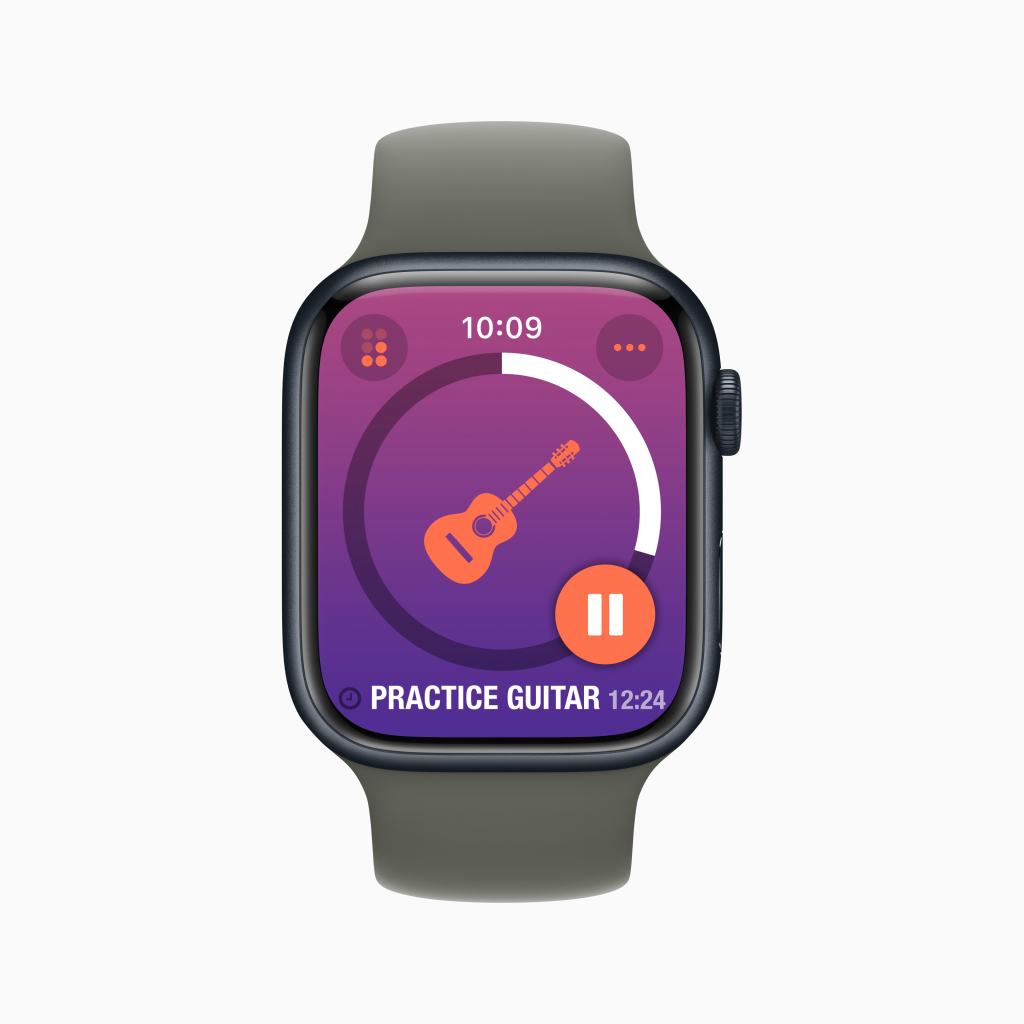
This new design philosophy should actually start cropping up in many more watchOS apps once developers can update their apps to support watchOS 10 specifically. Apple has found that many apps fit into one of three styles- Dial, Infographic, and List.

The implementation of these styles is left to the developer of each app to select and build their app around- users can’t pick and choose a style on a per app basis. But it is nice to see Apple finally finding their footing on how to best design an app for Apple Watch and take advantage of the bigger displays the Series 4 and Series 7 displays offer. This feels like the first version of watchOS to not be constrained in any way by the original Apple Watch display or design limitations.
The other thing I want to mention as neither a positive or negative, but something that is different that I do notice is Control Center. Invoking Control Center is no longer done by swiping up on the Watches display. Instead, you press the Side Button. This brings up Control Center from anywhere, rather than the Dock. While I did make expensive use of the Dock in previous versions of watchOS, I don’t actually find myself missing it. The Widget Stack and refreshed Home Screen make accessing the apps I want simple. And tying Control Center to the same button you use to power the Watch On and Off does make a certain amount of philosophical sense. But it is different and something that will take users a little bit to adjust to.
There are more changes like this in watchOS 10 actually. The Side Button brings up Control Center. Swiping up brings up the Widget Stack. You can no longer swipe across the face to quickly change faces- you have to press and hold the screen to do so. The Digital Crown no longer has a direct effect on faces it previously had an effect on. And double pressing the Digital Crown no longer quickly swaps you between two apps. Many of these changes are detailed for users once they update their Apple Watch to watchOS 10. And the Tips app offers up lots of good information for users, but I can’t help but feel like many users may spend the first few weeks with watchOS 10 feeling a sense of frustration.
But overall, I am very, very positive on watchOS 10. It is by far the biggest update the Watch has received in years and feels like a platform that Apple could actually now build more advanced features and apps off of than what they had previously. I think while many will feel frustrated at first with it, given time, they’ll come around tot he same joy I feel when wearing and interacting with my Apple Watch.
























 Soul of Apple