Category: Uncategorized

  • The Worrying Trend From Apple: Protect the iPhone.

    Apple Watch Independence

    A year ago, Bloomberg’s Mark Gurman released a story about how a few years ago Apple was working to bring Apple Watch compatibility and the Health app to Android devices before ending the project so that the company could protect iPhone sales.

    I suspect Apple began working on this feature in 2018 and while we didn’t get- and still haven’t gotten- Android support, I suspect these development efforts did start to materialize with the introduction of the dedicated watchOS App Store app in watchOS 6 (2019), the introduction of Family Setup in watchOS 7 (2020) and was probably meant to be part of watchOS 8 (2021) before getting scrapped.

    watchOS 8 placed a pretty big focus on communication with the introduction of features like a redesigned Photos app to make it easier to view and share photos with others. The ability to share music with others in the Music app. A redesigned Home app to make it easier to control your smart home from just the Apple Watch. A new Contacts app to add new phone numbers to your contacts list. And Find My to locate your devices and friends.

    All of these are features you’d want to add if the goal was to make Apple Watch owners able to work independently if they couldn’t rely on having an iPhone.

    Did you take a photo on your Android and save it to iCloud? Now you can easily share or view on Apple Watch. Want to stream Apple Music without a phone at all, but share a really cool song you want a friend to know about? Share it from Watch. Did you meet someone new and want to swap numbers? Just open up the Contacts app and add away. Misplace your AirPods? Now you can find them with Find My on the Watch.

    But this isn’t what ended up happening. Instead we got the features, which is nice, but can more easily and reliably use iPhone to do them instead. And since you need an iPhone, there’s no reason to use your Watch.

    This is part of a troubling trend Apple has displayed over the past several years- both from an innovation and business perspective. The trend is Apple doing everything they can to protect and increase sales of iPhone, even if it comes at the expense of other Apple products.

    If we stick with Apple Watch for a moment, this approach means that the install base of Apple Watch can only ever be as big as the install base of the iPhone. So if iPhone sales ever stall or decline, all other Apple hardware and services growth potential, as a result, stall or decline as well.

    This creates a system where you need one specific Apple device (iPhone) in order to gain entry to the wider ecosystem, rather than creating a system where it doesn’t matter what Apple device you start with and using that to gain entry to the wider ecosystem.

    Echos of the Past: The “Post PC Era”

    In the early 2000s, we were in what Apple described as the “PC Era”, a world in which the personal computer (usually a desktop, but could be a laptop) was the center of users digital lives. Every new device or service Apple introduced relied on the use of a PC. iPod had to be synced, backed up, and purchases made on iTunes (which required a PC) had to be transferred via a wired connection. And when the iPhone rolled out, it worked the same way. It had to be managed from a PC. Even the iPad at launch had to be managed in this way. But starting in 2011 with the introduction of iCloud, Apple brought PC independence to their devices. You could buy an iPod, iPhone, or iPad and login with your Apple ID (now Apple Account) and get all your information right from the cloud. Commonplace today, but in 2011, a pretty bold idea. This independence from the PC helped to spur sales of iPhone and iPad and led to what Apple called the “post PC era”. Or as we can probably more accurately call it, the “mobile era”. The mobile device in your pocket had the same if not more importance as the PC did in the previous decades.

    What we are seeing now is an echo of the past. We are moving into what can be described as a “wearable era”. People want devices they can wear. Watches, rings, glasses, headsets, wireless earbuds, and these are just the most common devices right now. Some are more developed than others, but growth is expected in all these areas over the coming years. Apple is hold fast to the mobile era and requiring their mobile devices to be a gateway to the wearable technology, but many companies are bypassing Apple entirely and just building these devices to work independently of what phone you have. Over time, unless Apple changes, I worry they’re going to get shoved out of the “wearable era” because they’ll never allow their wearables to get good enough to replace the iPhone.

    I can extend the same argument to home devices like HomePod, which require an iPhone or iPad to setup and connect to the internet. As growth of smart home accessories increase, Apple risks missing out on big parts of the market by not supporting other platforms or taking a leap over the competition by not requiring a mobile platform to setup at all. AirTag requires an iPhone or iPad to setup and locate, it can’t be done on any other device or platform. I can even make this argument about Apple Vision Pro, despite Apple claiming Apple Vision Pro is a “fully independent computer”. It really isn’t since you need an iPhone or iPad with Face ID to scan your head and get a head band size. Some Apple device is required and specific models at that.

    The Loss of the Self-Canibalization Mantra

    Steve Jobs once said, “If you don’t cannibalize yourself, someone else will”. This idea is all over the early 2000’s products Apple put out. Howard H. Yu summarized this well in his 2016 essay, “Apple’s dwindling sales show importance of self-cannibalization”. He wrote, “In 2005, when the demand for the iPod Mini remained huge, the Nano was launched, effectively destroying the revenue stream of an existing product. And while iPod sales were still going through the roof, Jobs launched the iPhone which combined iPod, cell phone, and Internet access into a single device. Three years after the iPhone’s launch, iPad made its debut and raised the prospect of cutting into Mac desktop computer sales.”

    This mantra is no longer at Apple. Nothing is allowed to devour the sales of the iPhone. It’s the reason why Apple Watch, no matter how capable the hardware becomes or advanced the software gets, it’ll always have to play second fiddle to iPhone. It’s why users can’t even pair an Apple Watch to an iPad; protect the iPhone. It’s why Apple News Plus Audio Stories are only on iPhone. It’s why Apple backtracked on Apple Fitness Plus requiring an Apple Watch, so iPhone users could pay the subscription fee. It’s why things like AirPods pairing is seamless on iPhone but not on Mac. Or why AirTag setup isn’t allowed on a Mac. Originally, Apple Arcade titles had to be playable on all Apple devices, but after a year or so, they backtracked and allowed games to be iPhone only.

    Everything has to ship on iPhone to protect its revenue. Nothing can cannibalize the iPhone. When it was introduced in 2007, the iPhone changed the way Apple thought about their products. 18 years later, and it seems like the thinking is still the same.

    Addendum

    Since initially wiring this post, Apple has displayed another instance of this behavior. On February 4th, Apple introduced the Invites app. An iPhone only app that allows you to create and share an event invite to people via iCloud. This app does work on iPad, but in the classic ‘iPhone mode’. This trend is reminiscent of other recent Apple developed apps. The Sports app is iPhone only. Journal is iPhone only.

    Apple Music Classical initially launched iPhone only in March 2023 and was brought to iPad 8 months later and just 3 months ago was expanded to CarPlay and work with Siri. It continues to be unavailable on Watch, Apple TV, Vision, Mac, Android, and the web. All platforms that Apple Music is already available on.

    Some apps, even though they may be available on multiple platforms, don’t function the same. Audio Stories, a feature available to Apple News Plus subscribers, are only available on iPhone. Not iPad, Mac, Watch, or Vision. Fitness on iPhone has a suite of features including viewing your Activity ring history, trainer tips from the Apple Fitness Plus trainer team, and ring sharing activity. None of this available on any other platform.

    It goes to show not only a shift in the way Apple is trying to protect the iPhone, but a shift in the way Apple approaches app development. That anything other than iOS isn’t worth creating apps for. What kind of message does that send to the developers that Apple is trying to court to create visionOS apps when Apple themselves don’t see value in developing for it?

  • Apple Intelligence Review (iOS 18.2)

    18.2- Image Based Tools

    With the recent release of iOS 18.2, Apple continues to rollout new Apple Intelligence features. Compared to the weak and lackluster initial rollout with iOS 18.1 in late October, this second phase is more noticeable and a bit more impressive. However, I continue to struggle to find way to work Apple Intelligence into my life in ways that help me express myself and be more productive.

    Genmoji

    Let’s start with Genmoji. This is one of the more fun features offered by Apple Intelligence, and could have been a breakthrough for adoption of Apple Intelligence, however it doesn’t do much. As such, it doesn’t really move the needle.

    If you watched this catchy ad by Apple and tried to generate any of these Genmoji’s, you probably didn’t get any of the same results.

    For example, I tried to regenerate the tomato spy emoji and I got something VERY different. Not only did I get nothing related to a tomato, I got promoted to use my sisters photo as a reference. Which is absolutely bizarre to say the least.

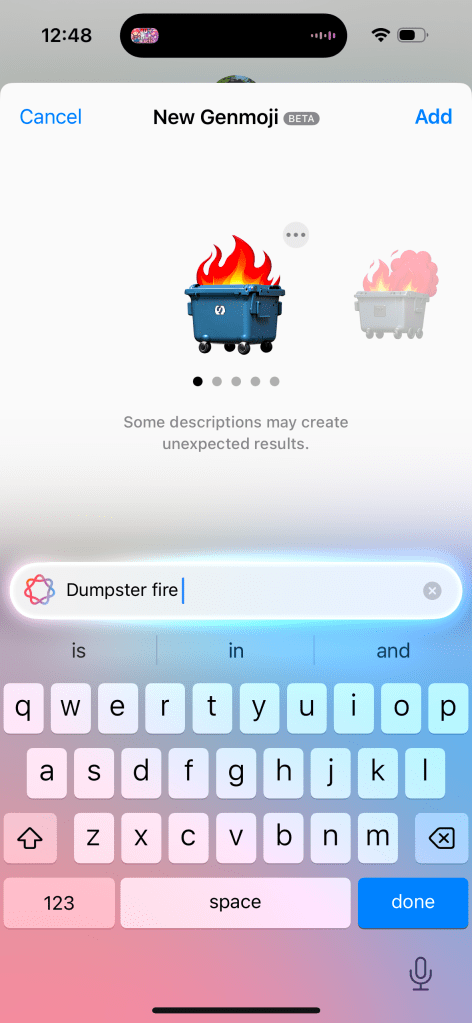
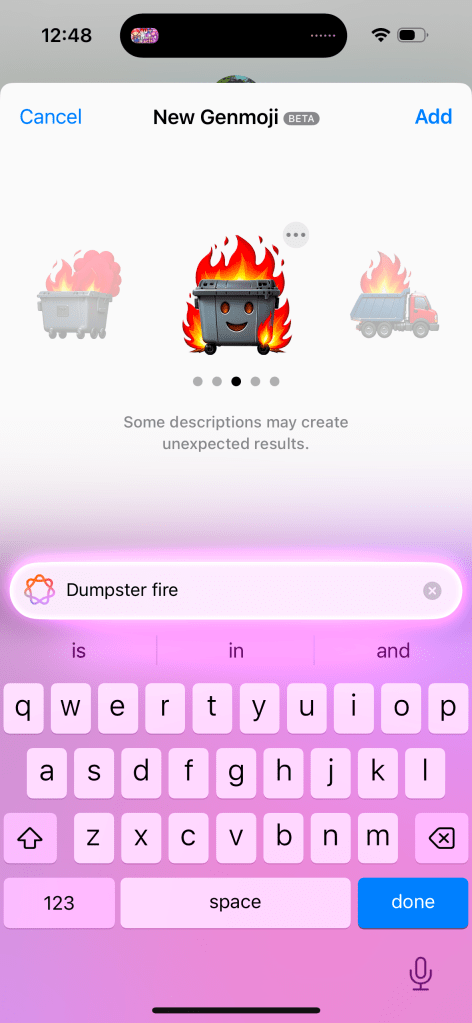
    The 12 sided die only generates a standard 6 sided die. Can of worms can get some decent results, but it requires a relatively extensive prompt. More extensive than is suggested by the ad or promotional material or even the size of the search box. You can get some decent results, like the one I generated for a dumpster fire (full disclosure, this has quickly become one of my favorite emojis to send) but some options have oddities- like adding a smiling face to the dumpster.

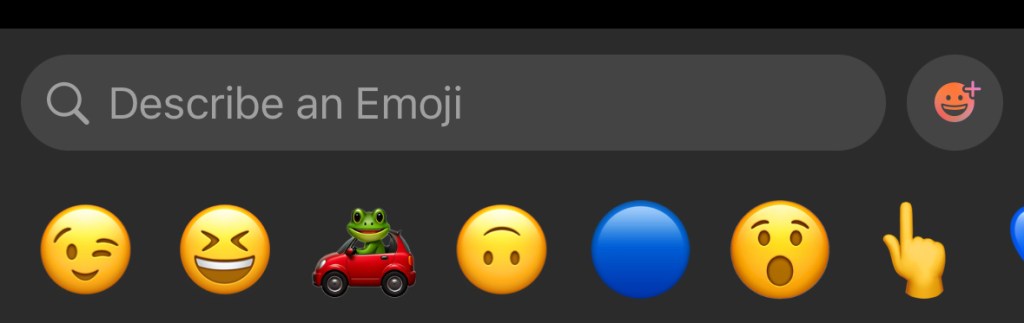
    The interface for Genmoji is functional and easier to find than the Writing Tools in my opinion. But I don’t think Apple has nailed this. You open your chat or text field and hit the Emoji button. Then you need to hit the button that has the Emoji face with a plus icon and the Apple Intelligence glow around it, and you can enter your prompt. This tiny button is next to a massive search bar to search for an already existing emoji.

    I’m not sure why the search bar and the Genmoji button are two different things. I feel like it’d be more intuitive to go search for an emoji and then if it finds a match, it’ll present that to you. But if it can’t find a match, then it’ll generate an emoji to use. Maybe this can be improved upon in iOS 19.

    The final thing to note about Genmoji is that it’s only on iOS and iPadOS. macOS is excluded at this time for some reason. It’s an odd omission considering all the previous Apple Intelligence features landed on all platforms at the same time. Not sure why this one didn’t. Also sending Genmoji via Messages to anything but another iMessage user is not a great experience. It’ll just send a large PNG picture to Android users and are entirely unavailable in other apps.

    Image Playground

    This is one of the most un-Apple like implementations of a feature I’ve ever used. And people beyond me have pointed this out. The icon does not convey it is the quality of an Apple created app. And when using the app, it doesn’t feel like a first party Apple app either. Some people on Reddit and Bluesky have even mistaken it as a scam app or one of those microtranscation filled kids games from the App Store.

    This app is interesting. When you go to generate an image it’ll ask you to enter a text prompt (just like Genmoji, though note, you can’t create Genmoji in Image Playground), select a person to use as a reference, and you can select some pre-curated options to customize your image further without needing to enter a specific prompt. These options range from things like”disco” or “winter” to costumes like “astronaut” and chef”, accessories like “sunglasses”, and places like “city” or stage”.

    Selecting just one option or a person or a single prompt will allow the model to begin generating your image. You can select an animation style (think Pixar) or an illustration style (think like a holiday card). To Apple’s credit, they do not allow you to generate a photorealistic image. So this really is more of an entertainment thing that is good for laughs more than anything.

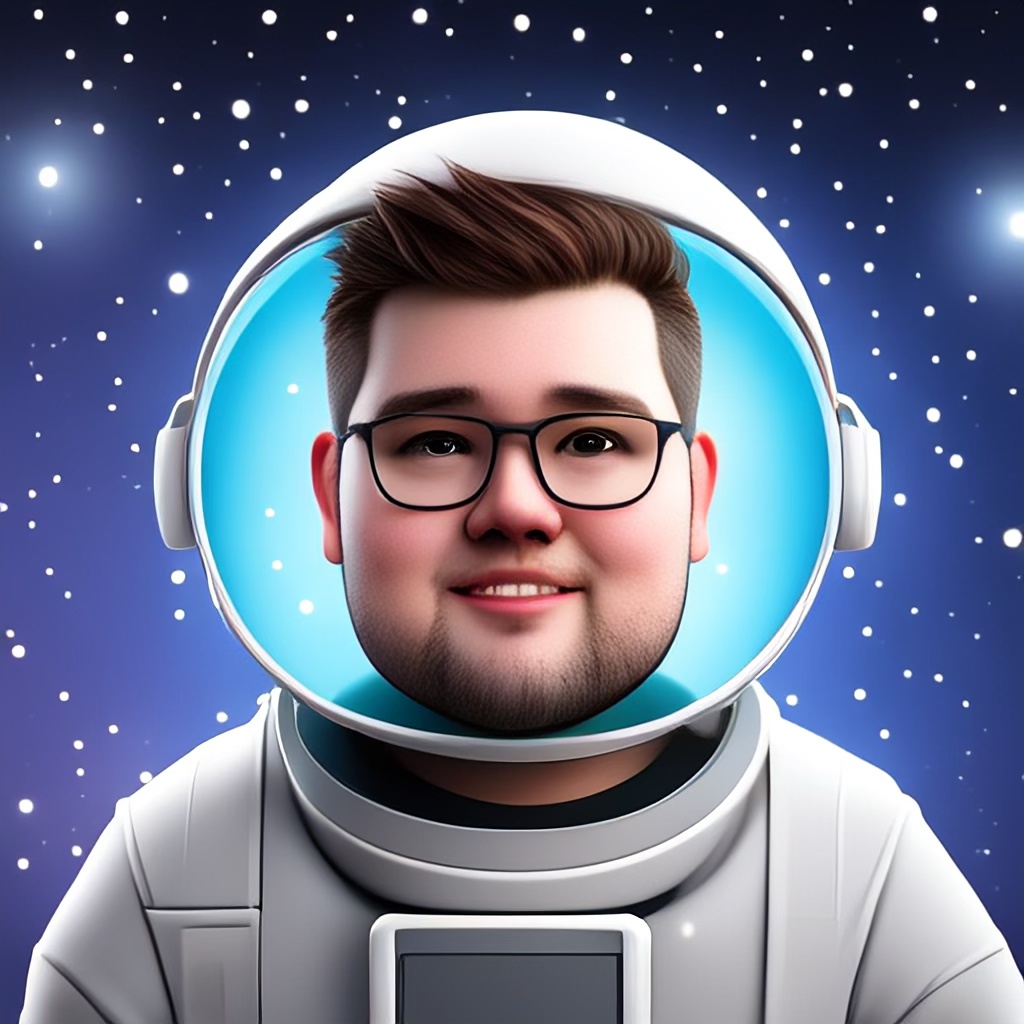
    The results aren’t great. I’ve included some examples above. The first one is using the disco, fireworks, starry night, and text prompt “add the text 2024”, and it looks alright. I generated this with the intent of using it for a year-in-review- kind of post. The second is based on a photo of myself and the “astronaut” and “starry night” prompts. It’s fine, but my hair is very, very wrong stylistically (this has been widely reported as an issue with Apple Intelligences model) and its on the outside of the same helmet. In addition, the skin around my neck is clearly visible and not covered by the space suit. The third is a couple text prompts describing a modern home with hardwood floors and at a glance it’s nice. But when you take a closer look you can see all kinds of errors with the legs on the table, the pillows on the couch, and the table on the left looks weird.

    The real takeaway from Image Playground is it has no useful purpose. What would you want to use this app for? I haven’t found a purpose and neither has anyone else online either.

    Image Wand

    This is basically an extension of Image Playground. The difference is instead of exclusively using text and suggested themes to generate an image, you can draw something in an app (like Notes) using Markup and then circle it to give Image Playground a head start on what you are looking for. You can then augment the sketch with text prompts, or if Apple Intelligence cannot determine what your drawing was, it may ask for more information about your sketch before generating more options.

    Putting aside the creative encroachment for a moment, I have two issues with this feature. The first is that I frequently need to give more than just my sketch to the model before it can start generating something. An elementary drawing of a house asks me to describe to what I’ve drawn. That’s pretty disappointing and not very productive.

    The second is that it just as often takes my sketch and goes a mile with it. My elementary house sketch that I really wanted to use Image Wand on to make look a little nicer, just generates an entire house design concept with the AI generated image oddities we’ve all seen before online or in the Photos Cleanup Tool. The result I get often bears little resemblance to what I started with. I often complain about Apple Intelligence not doing enough, but this is a case of it going too far without a way to reel it back in.

    ChatGPT Integration with Siri

    I don’t have much to say about this one since I have this turned off as I don’t want to share any information with Open AI and, as this post has probably indicated, I’m just not an AI fan in general. But the idea here is that if you engage with Siri in a way that Siri can’t respond to, that data will be sent to ChatGPT and that information will be supplied back to you via Siri. It’s a crutch to making Siri look more powerful than it actually is.

    While on this subject, Apple has been super disingenuous with the Siri improvements in iOS 18, their marketing of the iPhone 16, and Apple Intelligence. All the marketing advertise…

    1. The new Siri interface, which is worse than the orb
    2. New Siri functionality, which does not exist
    3. And uses the Siri + ChatGPT to make Siri look better than it actually is

    This is a trend that is very un-Apple like and I hope does not return with iOS 19 and the iPhone 17 lineup.

    Writing Tools Improvements

    While Writing Tools was first introduced with iOS 18.1, Apple has gone back and improved this set of tools a little bit. The missing ‘Describe Your Change’ feature, where you could describe a type of change to make to your text is now available. This can be achieved by using Apple Intelligence, however it can kick your request and the associated text to ChatGPT if the request you make is outside of Apple Intelligences capabilities. The benefit here is users can get a better result, or at least a result more in line with their expectations, but the downside is confusion to the user as to what Apple Intelligence really is. If Apple Intelligence is marketed as a rival and superior option to ChatGPT, Google Gemini, or Meta AI, but Apple Intelligence regularly kicks you out to use one of those options, then what’s the point of Apple Intelligence?

    I do want to note that at the time Writing Tools was introduced, I pointed out just how difficult it was to even find or use and this hasn’t changed substantially, but is a little bit better for people who use Pages. Pages now has a dedicated Writing Tools button in the toolbar- making it easier to access but not any easier to use. For example, if I describe a change but don’t like the result, it’s not easy to go back and change my prompt. One of the options for advanced proofreading I previously complained didn’t work in real time and it still does not. I’d love to know just how widely used these tools are because I’d be quite surprised if it is widespread.

    Visual Intelligence

    This is an interesting feature in that it is one of the few Apple Intelligence features exclusive to the iPhone 16 and iPhone 16 Pro. It’s not on iPhone 15 Pro. The way this is invoked is by click and holding the Camera Control button . I do not know why, but limiting this feature to just iPhones with Camera Control is kinda dumb.

    I also don’t think this feature is very impressive. After you open Visual Intelligence you are presented with an Apple Intelligence animation-ified Camera interface where you can click an ‘Ask’ or ‘Search’ button to ask ChatGPT about what you’ve taken a picture of or do a Google Image search for what you’ve taken a picture of. Neither of these, obviously, utilize Apple Intelligence. It’s the ChatGPT problem all over again from the Writing Tools.

    You can get information about things you’ve taken a picture (like what breed a dog is) but I don’t think this uses any new Apple Intelligence functionality, but rather piggybacks off the Visual Look Up feature Apple introduced to the Photos app in iOS 17. Visual Look Up works by scanning your photo and identifying what is in the photo and provides you Siri Knowledge and related web results on what has been identified.

    Apple Intelligence Mail Categories

    This is maybe the best use of Apple Intelligence so far. The Mail app has gained four inbox categories- Primary, Transactions, Updates, and Promotions. Then based upon the emails you receive, Apple Intelligence will automatically sort your mail into one of those four categories. The Priority category from iOS 18.1 remains as a sub-category within the Primary category. Visually this is really nice and can help to have those promotional messages that you don’t need to know about but don’t want to miss out on either in your mind without feeling like you need to take action on immediately.

    The bad news is twofold. First, Apple Intelligence doesn’t sort these messages by message content, it still bases its sorting on who the sender is. If I place an order from Dominos for a pizza, I’d expect the order confirmation with the delivery time to be shown in Primary as a priority message since it’s message contents have a time associated with it. But the promotional “get your free pizza” email, that I’d expect to another one of the categories like Promotions. At the same time, maybe Updates is more appropriate? It’s not a Transaction, but could lead to a transaction.

    It feels like Apple put themselves into a corner by pre-selecting these categories rather than having Apple Intelligence dynamically create categories based upon what is in your inbox. And basing the categorization by sender creates problems for different kinds of emails you can get from the same sender.

    The other problem is that this Mail app is exclusive to iOS. You can’t view your email with these categories on iPad or Mac. This is especially disappointing on Mac where most emails are created and viewed. And it’s just a baffling omission from iPad since iPadOS and iOS are virtually identical. Guess we’ll have to wait for another future software update.

    I will end on one last positive. While I have issues with the way Apple Intelligence sorts my mail, I do overall like the feature. But if you don’t, it is super easy to switch back to the traditional single-inbox experience. Just tap the More button in the upper corner and you can instantly switch between the two styles.

    Overall Thoughts-

    Based on my extended time with the first wave of Apple Intelligence features and the overall impressions of the second wave of features, there are a couple trends that are becoming very clear.

    First, the investment Apple has made into Apple Intelligence has seemingly not been worth it and I struggle to see how these image generative tools benefit users or help Apple build future products. Look at Image Playgrounds- an app that has no functional purpose to exist and is commonly mistaken as a scam app. Image Wand is a feature that is sure to met the ire of Apple’s creative customers. And if so many of the Apple Intelligence features have to be sent to ChatGPT, what is the benefit of Apple building their own AI models? Other companies have show that AI products like the Rabbit R1 and Humane AI Pin are just kinda pointless. So there’s nothing hardware or platform wise Apple can build with AI.

    Secondly, it is becoming clear that users do not understand what Apple Intelligence is or how it works. I saw a Reddit post a month or so ago of someone who “hacked” Apple Intelligence onto their iPhone 13 and demoed the new Siri animation and re-write features that used ChatGPT, not Apple Intelligence. What people thought they were getting with Apple Intelligence was a chatbot integrated into Siri and what we got was very much not that. Leaving users confused about what AI even does or is for. While Siri improvements are supposed to be coming next year, the damage has likely been done to Apple Intelligence’s reputation. And all the Siri improvements are dependent upon adoption of the App Intents API Apple has made available. Back in 2016 with iOS 10, Apple greatly expanded the uses of the Siri API so more developers could plug their apps into Siri. That never happened though and many of the features Apple showed at WWDC that year never shipped or have been discontinued.

    Third and finally, very few Apple Intelligence features are well implemented. This is incredibly concerning from a company like Apple who got to this point by shipping complete and polished experiences that are intuitive and easy to use. Nothing about any Apple Intelligence feature has been complete (as evidenced by its piecemeal rollout), polished (as evidenced by how often they have to rely on competitors AI models to do work for them), intuitive (as evidenced by how hard it is to find a lot of these features in the first place), or easy to use (since you have to already know how to prompt AI to get a certain result). Apple has been under fire for years with questions about their ability to deliver experiences like they did in the Steve Jobs era and I am more confident than ever that Apple has indeed lost their way and are just chasing trends.

  • Apple Watch Series 10 Impressions

    Hey. It’s been a while. I’m happy to be back to share my initial impressions of this years new Apple Watch- Apple Watch Series 10.

    Let’s start by going over the thing Apple wants people to talk about, the bigger display sizes. If you remember, 10 years ago to the day, Apple announced the first generation Apple Watch with its 38mm and 42mm case sizes. Now Series 10 features massive 42mm and 46mm sizes with displays that absolutely dwarf the Series 3 and earlier models.

    Bigger displays are always great to have and on a device as small as Apple Watch, every pixel counts. But this a trick Apple has pulled before and with only moderate success. The bigger displays of Series 4 worked to drive upgrades, but we had a culmination of other features too. Like the ECG app, the powerful S4 SiP, the Taptic Crown, and the bigger screen. Apple last increased the screen size with the Series 7, but this model fails to drive upgrades as it was really just that- bigger screens. Some people (like myself) were interested in bigger screens and upgraded for that, but most didn’t. I think this is where the next part of Apple’s marketing comes into play…

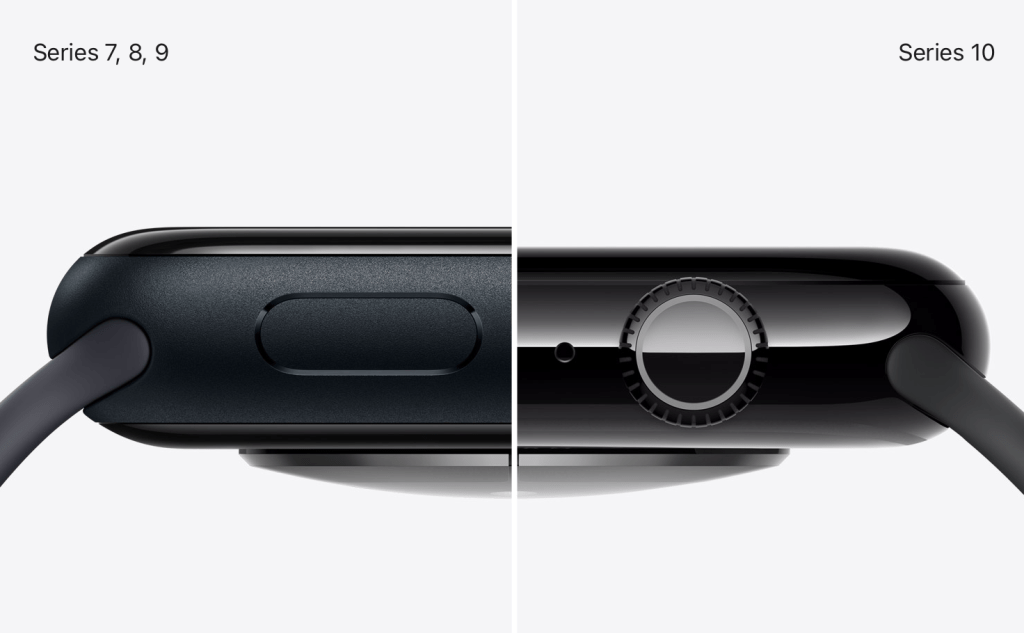
    Apple Watch Series 10 is advertised as being 10% thinner than previous models. This should make the Series 10 more comfortable to wear and less obtrusive on your wrist.

    In this side-by-side, it certainly is thinner, but I don’t know if it’s substantial enough to be noticeable. At the scale of Apple Watch, 10% is 10% and I’ll take it, but I’m not sure it’s going to be obvious. Much like how the M4 iPad Pro is “the thinnest product has made” and that seems to not be driving sales of those devices. But the last time Apple made the Watch thinner was with Series 4. So if Apple is aiming to drive upgrades of Apple Watch, they seem to be emulating the strategy of the Series 4 by creating a new Apple Watch that is both bigger and thinner than before. We’ll have to see if this shakes out for Apple.

    As for me, I am happy to see Apple Watch become thinner and larger, but I feel like we’re hitting the maximum for how big of a device Watch can become. I have a pretty large wrist and wear a 45mm Series 9 currently and I’m hesitant to go much bigger. And extra 2mm might be all I can tolerate on my wrist before having to size down or stop upgrading entirely. I am excited to see Apple returning to a focus on product thinness though, this is a welcome return of the Ive philosophy of design.

    Next, let’s discuss the other hardware improvements. We have a redesigned speaker that is 30% smaller but supposedly retains the same acoustic performance of previous models and is now able to play any audio directly from the Watch- not just phone calls. Yes, my lifelong dream of playing music from my Watch without the need for AirPods is finally coming true! Not sure why this limited to Series 10, but I’m happy this functionality is available nonetheless.

    We also have out first instance of an Apple Watch Ultra feature migrating down the product lineup- the depth and water temperature sensors. This is not the first Apple Watch Ultra feature I expected to make its way into a lower end model, but I guess I’ll take it. Just like with Apple Watch Ultra, when doing a water workout, you can check your Apple Watch to see the water temperature and how deep you are. Keep in mind however, Apple Watch Series 10 does not have improved water resistance, so you can’d go diving with it like you can Ultra.

    Of all the features from the Ultra that could’ve migrated down, this wasn’t near the top of my list, but does suggest Apple is open to brining more features to the base model. Hopefully in the next year or two we can get a bigger battery, or dual frequency GPS, or maybe someday Apple’s growing suite of satellite connectivity features will appear in Watch.

    There is also a new focus on case finishes and materials that Apple hasn’t paid attention to since the Series 5. Aluminum comes in three colors. The classic and neutral silver color that Apple Watch users have come to love. A new rose gold color that hasn’t been seen since the Series 4 and looks quite nice, even if there is no color matched iPhone to pair it with. And, what I expect to be by far the most popular color, a polished and anodized jet black color that looks like it would pair perfectly with the jet black iPhone 7. It looks stunning in Apple’s marketing and if I pick up a Series 10, it’ll be this model.

    Stainless steel is out this year and in is titanium. Very exciting since this also hasn’t been used since the Series 5. The natural titanium looks nice, it will certainly pair well the natural titanium iPhone 15 and 16 Pro. There is a slate option as well which is deftly the darkest option here but doesn’t look black. It almost looks like a graphite color. And gold returns as well, and it looks very nice. Defiantly a gold that would look much more in place with the iPhone XS than our current iPhone colors, but gold is gold, some people love the color. I’d be much more upbeat with the titanium options if they were not polished (they almost look like stainless steel) and if the accompanying bands were also made of titanium and not stainless steel. It contributes to feel of Apple Watch as one product that is designed by one group of people and Apple Watch bands as another set of products designed by another group of people without the two ever communicating. I hope next year Apple develops the Apple Watch Series 11 as a complete package- one where the materials and design and colors all match and compliment each other by default.

    The only other hardware thing to note is that while we have the S10 SiP in this years Apple Watch, I don’t see anything to indicate that it is actually different than the S9 from last year. I expect that the differences are really limited to supporting the water depth/temperature sensors and the new display with no performance improvements to speak of. Disappointing, but unfortunately not unexpected.

    Finally, we actually have a new health feature this year! And one that is going to be more impactful than the temperature sensors. Using the improved accelerometer from both the S9 and S10, combined with the data Apple Watch tracks while you sleep, Apple claims they can detect sleep apnea. This could be pretty big if it works. It is interesting that Apple is using sleep tracking and accelerometer data to do this rather than the SPo2 sensor from the Series 6 onward, but considering it’s patent dispute with Masimo, it’s maybe not too surprising. Once that dispute is resolved, maybe sleep apnea detection will improve.

    This feature combined with the introduction of the Vitals app and Training Load in watchOS 11 (and combined with the other health related features Apple touted in the event itself) makes me think Apple is back to having some comprehensive health plan for the Apple Watch.

    So overall, that is Apple Watch Series 10. I’m overall pretty happy with what we have here. Bigger and thinner, a focus on the Watch fundamentals like design and materials is a welcome return to form. The features are light, but bigger than what we get most years. And the prices remain unchanged which I find to be very positive. I’m hoping I can get some hands on time with Series 10 later this month, and stay tuned for my watchOS 11 review.

  • I Tried Apple Vision Pro. Here’s What I Think.

    I Tried Apple Vision Pro. Here’s What I Think.

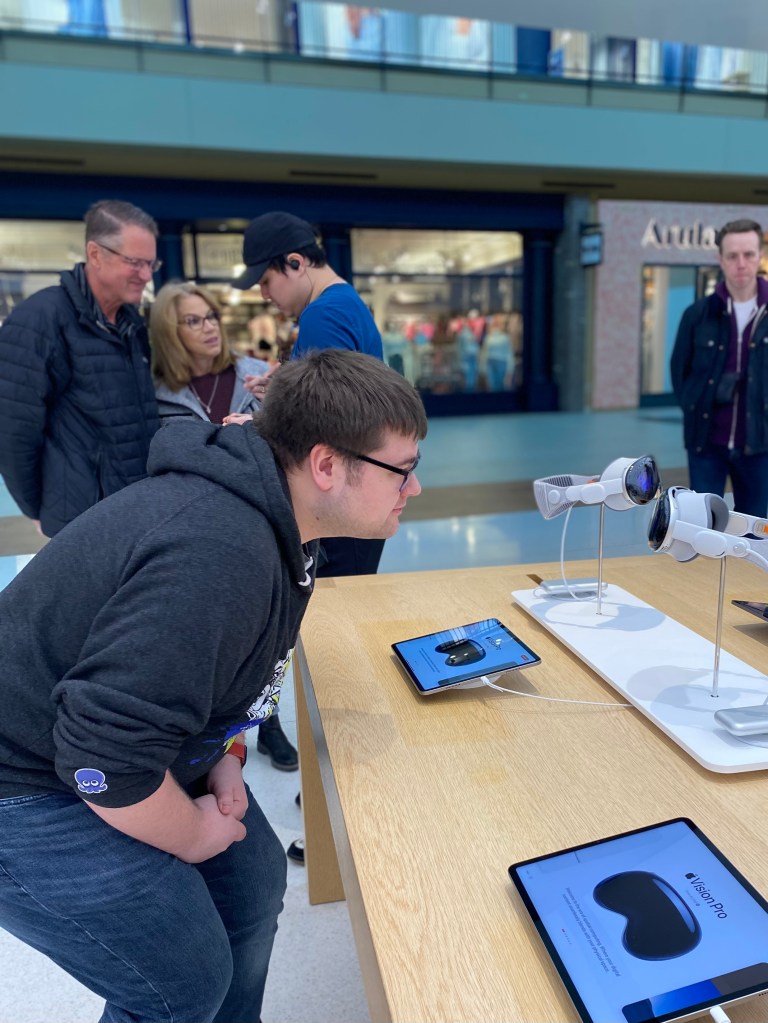
    If you’re a nerd like me, you’ve been tracking all the Apple Vision Pro reviews as they’ve been becoming available over the past week or so. When I headed down to Iowa’s only Apple Store on February 3rd, I had a good idea of what to expect from my time with Apple Vision Pro. But when I tried it myself, I was pretty torn. The technology and design was incredible and felt like something a lot of people will have in a couple of years. But as for me, I had issues with my prescription and sight and that means that until there are hardware changes to either the Vision Pro or the ZEISS lenses, I can’t really use Apple Vision Pro. And that left me pretty disappointed.

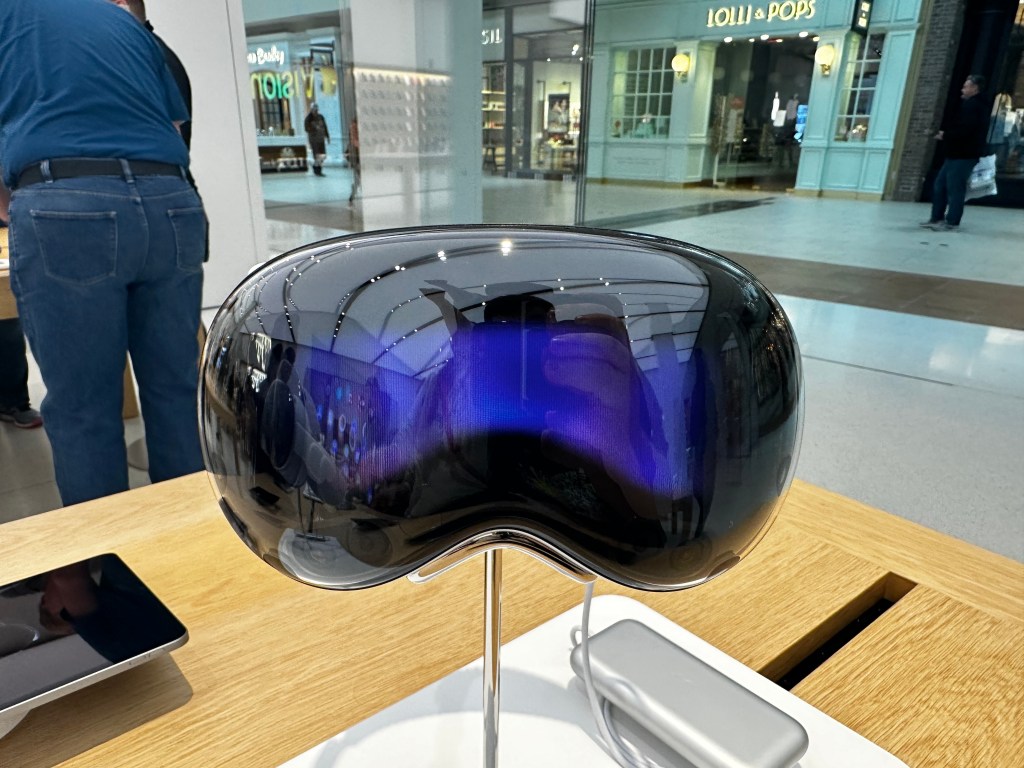
    Two Apple Vision Pro headsets on display in an Apple Store.
    Apple Vision Pro on display in the Apple Store

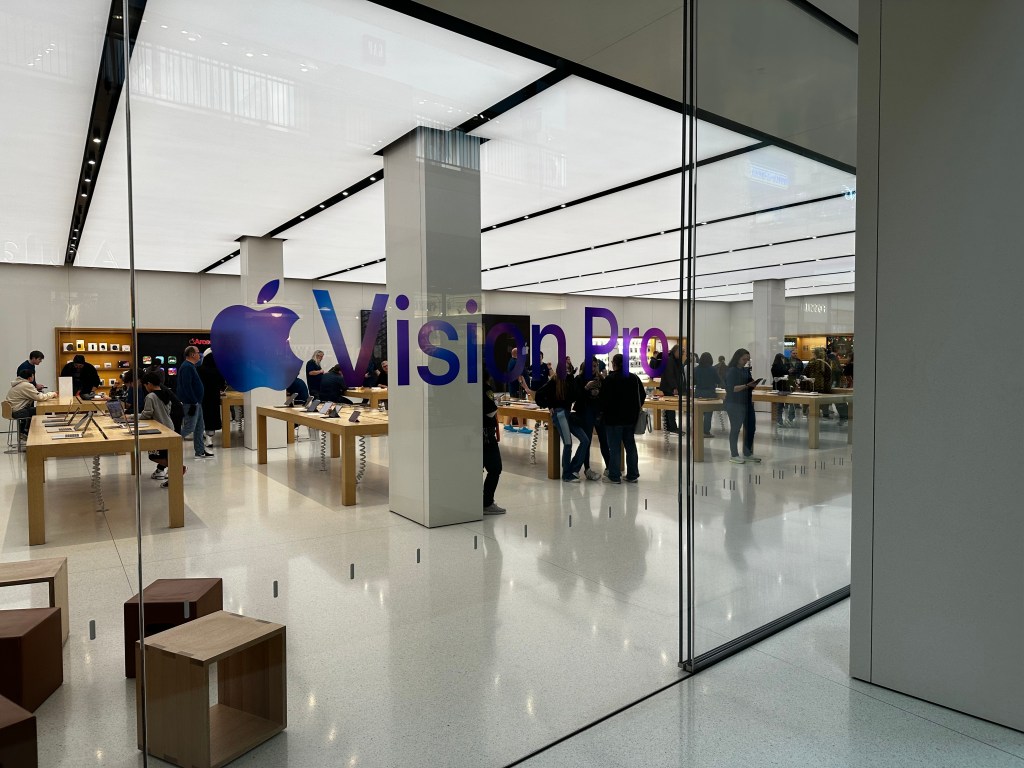
    I arrived with my partner to the Apple Store about 5 minutes before it opened. Inside I could see Apple employees handled in the back of store between the forum and the table where they would soon be giving demos of Apple Vision Pro to visitors. There were just a handful of us outside the store, most of us wanting to demo the new product, of course.

    The new Apple Vision Pro tables inside the Apple Store.

    Inside the store I could see a new table had appeared since I last visited that had 4 Apple Vision Pro headsets set on top of it. 2 headsets per white tray showing the Vision Pro from different sides with the power cable gently draping down to the large silver battery laying on the table next to it. In just a few moments, I was going to be putting one on and seeing if this product was all it was hyped up to be.

    Once the store opened, we were greeted by an employee who took some information from us and had us wait by the Vision Pro product table until they were set for us.

    I closely inspect the Apple Vision Pros design for the first time.

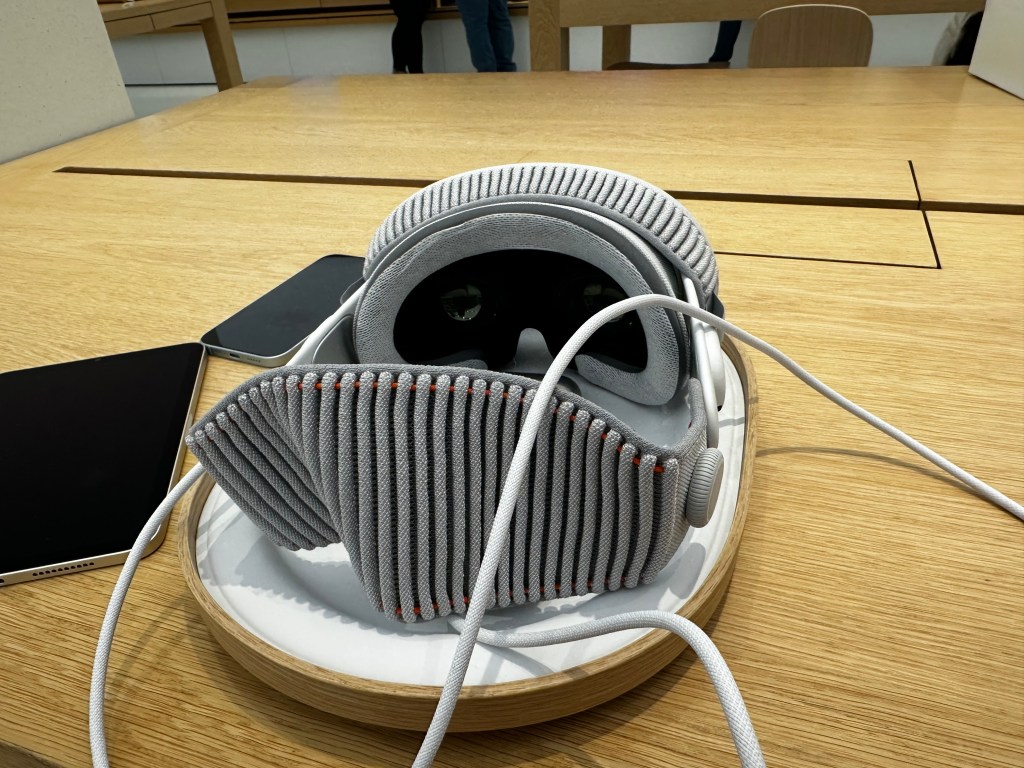
    After a quick survey on my phone, I began to closely inspect the Apple Vision Pro in front of me. I don’t know if I can say it’s a beautiful device, but it is pleasant to look at. You can really see the amalgamation of different Apple products from the past decade in this devices design. The frame of Apple Vision Pro is relatively thin and unapologetically looks like the silver aluminum iPhone of the 6 and 6s era. The Audio Straps are pure white like AirPods. The power cable that connects the device and its battery is braided akin to the current generation MagSafe charges Apple uses for the MacBook Pro. The fabric of the Light Seal and Solo Strap around the back looks like it came off either a next generation AirPods Pro Max canopy or Apple Watch band. And speaking of the Apple Watch, the only two ways to physically interact with the device are by the Digital Crown and Top Button (which looks identical to the Watches Side Button). I did notice a few odd inconsistencies in the stitching of the Light Seal, but I’m not sure if this was intentional and it just looked off to me, or if the stitching is more even on production units than the demo units on display.

    The outward facing EyeSight display on Apple Vision Pro.

    By far the part of the design that stood out the most to me was the outward facing EyeSight display. When revealed at WWDC last year, Apple said that it was “foundational” to Apple Vision Pro to make the device not feel isolating. Based on reviews from the past week, I’m not totally sure it succeeds at that goal. But the EyeSight display does do a few other things which I certainly find interesting, if not compelling. For example, when setting up a Persona, large colorized arrows direct you to turn your head to the left, right, up, and down. And when installing a visionOS update, you can see a progress bar and an Apple logo when it begins to reboot.

    My main concern when inspecting it in person is that the display is just bad. There’s no other way to say it. It’s bad. It’s very small, deeply recessed into the headset (or at least far behind the cover glass), and it’s horribly pixelated. I think I could count the individual pixels on the EyeSight display if I had enough time to do so.

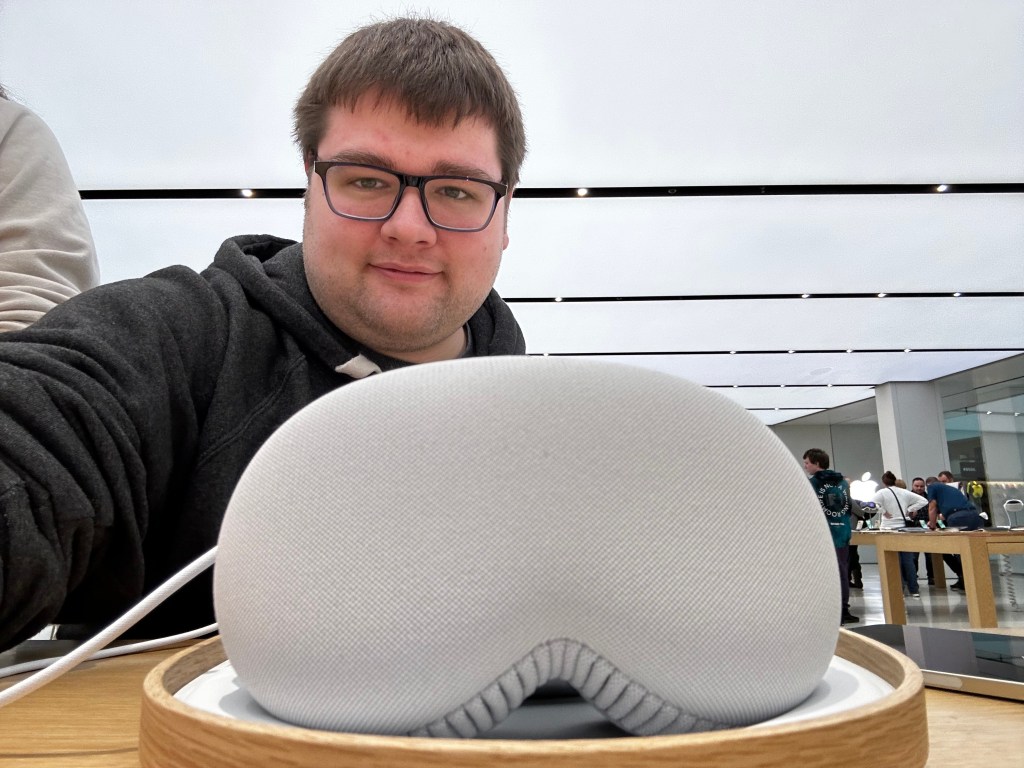
    Apple Vision Pro devices to be used for demos come on these nice little wooden trays with a white liner that conform the corner radii of the device itself.

    After a few moments of waiting, I was brought over to a table toward the back corner of the Apple Store where I took a seat in these new wooden office chairs that allow you gently lean back and easily turn in place. The Apple Store employee who was to guide me though the Apple Vision Pro demo took a seat on a typical stool next to me. He handed me an iPhone 15 to quickly do a scan of my head to find the right size of headband for me. If you’ve done the checkout process in the Apple Store app on your own iPhone, it’s the same one. It is simple, but I did have trouble getting the phone to recognize it when I turned my head toward the right. The same thing happened on my own iPhone a few days previously.

    Once my size was confirmed, I was taken over to the infamous Apple Vision Pro cabinet which, I suspect, holds dozens upon dozens of ZEISS Optical Lenses for demo use with Apple Vision Pro. I wear prescription glasses, and because of this they needed to use what I think is a lensometer to quickly measure my prescription and match it to the closest corresponding left and right ZEISS lens.

    The infamous Apple Vision Pro demo cabinet in all its mismatched glory. Photo credit Mark Gruman.

    This is where my demo went a little bit of the rails.

    After putting my glasses onto the lensometer, and it taking just a minuet to scan each lens, it returned a result that my prescription was not available for demo and to proceed with the demo sans optical inserts. Or at least, that’s what the employee said. I wasn’t wearing my glasses. I couldn’t read the message on the machine. So we sat back down at the table and we went ahead with the demo.

    A few moments later, another employee wearing gloves came out of the back, holding my demo unit on this snazzy wooden tray and gently set it down on the table in front of me. It almost felt like I was being served a meal in the Apple Store! After a few quick instructions, the employee guiding me though the process had me pick up Apple Vision Pro by the aluminum frame and put it on. It was a little difficult as the frame is somewhat narrow and the rest of the components that I naturally wanted to grab ahold of I knew were magnetically attached to the device. So if I grabbed them, they’d come right off. But after a moment, I got it and put it on my head.

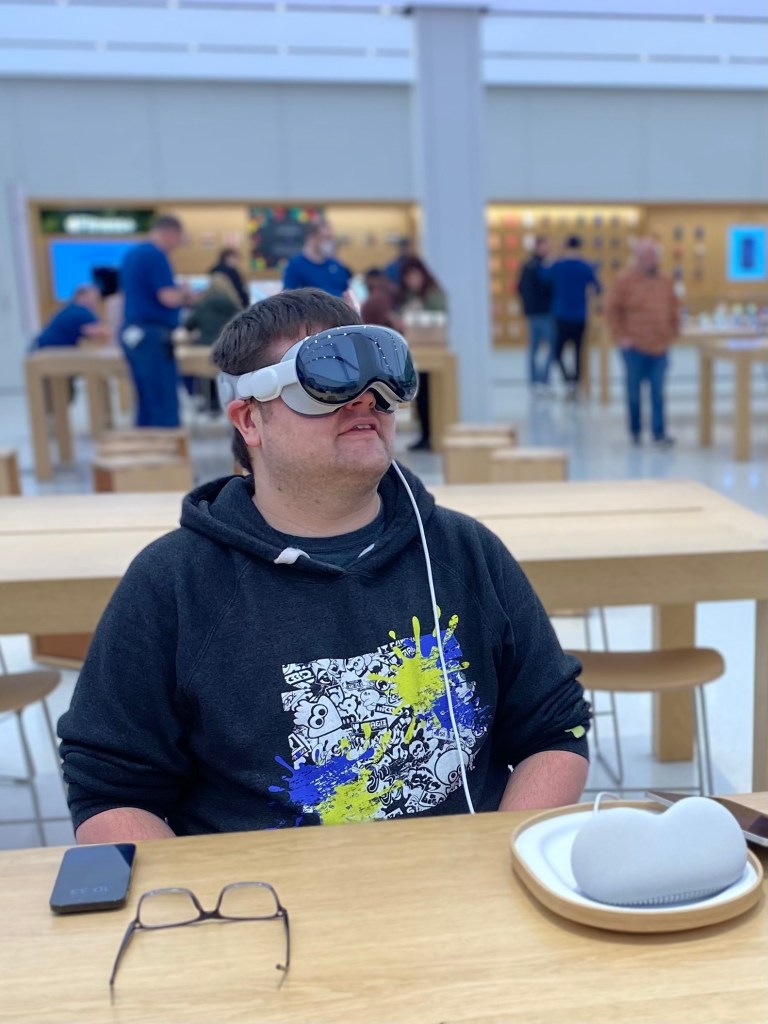
    Me wearing Apple Vision Pro for the first time.

    Right away I noticed the newfound weight on my face. In half an hour, it was hard to gauge how much of a problem this would be long term. After a few hours, after a few weeks, it could be totally fine. I have no way of knowing. The other thing I noticed was that the Light Seal wasn’t blocking all of the light around me. If I looked down, I could see a thin bit of light leakage from the store around me. It wasn’t bad and didn’t bother me, so I went with it. I tried to adjusted the Fit Dial on the side on the headset to make it a little tighter, to more snuggly fit my face, but the dial was maxed out. I probably could have asked for a smaller size, but I did want to keep the demo going and not be super demanding. I wasn’t intending to purchase one after the demo after all.

    Right after that, the second thing I noticed was that I was in the Apple Store. I could see my partner at the other table across from me, the employee next to me was right where I left him prior to putting Vision Pro on, and I saw the screens flickering around the Apple Store. It was kinda immersion breaking to be honest. But I also noticed that everything around me was a bit blurry. Just like it would be if I woke up and walked to the bathroom without having put on my glasses. This was a frequent occurrence throughout my demo and just had to live with it. I was able to get the idea of what I was looking at; I’m not TOTALLY blind without my glasses after all. (Just very close)

    The third thing that happened was I was prompted by Vision Pro to calibrate eye tracking. I used my eyes to look at a series of dots that appeared around me and would tap my fingers together when they were hilighted to select them. The eye tracking was very good throughout the whole demo. There were a few instances where I was looking at something, like the corner of a window, and the resize option didn’t appear and I was a little confused on how to make it appear. When something like that occurred, I was never certain what to do. I usually looked somewhere else and then redirected my eyes toward what I wanted to do originally. Sometimes I would try just randomly taping my fingers together to see if visionOS could guess at what I was trying to do. This only happened twice, but did leave me slightly frustrated in those moments.

    The next thing it had me do was setup my hands for hand tracking. I put my hands in front of me and after a few seconds it said they were ‘connected’. I was able to tap my fingers together to select things I was looking at with my eyes, I could tap and move my hands outward and inward to move windows and resize them. It was very, very cool and surprisingly natural.

    In same way the design of Apple Vision Pro felt like an amalgamation of previous Apple devices from the past decade, the UI of visionOS feels much the same. When looking at an app icon, it slightly expands and displays the app name like on tvOS. The UI of resizing windows is lifted almost directly from Stage Manager on iPadOS. iPadOS apps themselves can be run natively on visionOS. App icons themselves are circular similar to watchOS. The window bar that appears under all windows looks like it was pulled right out of iOS.

    Once I found my footing in visionOS I was directed to the Photos app to view some photos. I was directed toward an album that had the sample photos to look at. The first was a pretty standard photo that was taken on an iPhone. Once it was selected, the room around me dimmed to emphasize the content. It was a very cool effect and one that I found enjoyable. The next was a Panorama photo that had been taken on an iPhone as well and when expanded it surrounded my space. It was also very, very cool. I actually quite liked this feature as I almost felt teleported to the lake where it had been taken.

    Spacial Video in Apple Vision Pro. Photo credit Apple.

    Trying to minimize the Panorama and view the next photo in the album proved to be a little tricky. I couldn’t locate a minimize button and swiping with my hand to the next photo caused some kind of error to occur where there was no photo in my space for a second and then the Spacial Photo loaded. The Spacial Photo itself was cool. It almost felt like viewing a memory from one of the memory orbs in Pixar’s ‘Inside Out’. The Spacial Video I saw next was similarly cool, but I don’t know if I’d want o take one. TO take one, I’d have to either hold an iPhone 15 Pro up close to a subject and turn on the specific mode, or get up close to a subject while wearing Vision Pro. It’d be a very… strange… scene to others in the room.

    I got a quick tutorial on how to use the Environments feature with the Digital Crown. Turning the Digital Crown allows you to dial in a 3D background that essentially replaces the space around you. So with a quick twist of the Digital Crown, I was once again teleported from the Apple Store to what I believe was Mt. Hood. It was very cool to be able to finely dial in and out my level of immersion. I could definitely see situations in which I’d use Environments, but I generally found myself preferring to stay in my actual space, in the Apple Store.

    A quick press of the Digital Crown brought up the Home Screen and allowed me to open the TV app. I selected an option on the sidebar and it brought up a selection of 3D video content. By far my favorite part was getting to watch a clip of the Super Mario Bros. Movie in 3D. In some cosmic way, I like to think that this validates Nintendos experiments with 3D on the 3DS. I also felt like I was playing Super Mario 3D Land all over again. It was so cool I had to watch the clip twice. Once in the normal window size and once again in a massive window I put slightly above me to feel like I was in a theater. It was kinda incredible.

    Also in the TV app was a quick video that showcased the ‘Apple Immersive Video’ format. The format is shot with a special camera that shoots video in 180 degree views. This was easily, by far, my favorite part of the demo. The video was so incredibly detailed. And the depth it captured was incredible. Everywhere I looked I saw some new detail in the video. The standout moment was when a baseball and soccer game came on. It felt like I was standing right there on the sideline of the game watching in person. I hate sports, but I’d watch sports on Apple Vision Pro.

    The standout moment was when a baseball and soccer game came on. It felt like I was standing right there on the sideline of the game watching in person. I hate sports, but I’d watch sports on Apple Vision Pro.

    Connor Duffus

    Once I saw the video, my demo began to wrap up. I was instructed to open the Compatible Apps folder on the Vision Pro Home Screen and open an iPad app. And I got to experience having 3 different windows from three different apps be all around me. And a mix of those apps were visionOS and iPadOS apps. I didn’t get to interact with the iPad app, but I’m also not certain how I would have. I tried to look at the app and control it that way but none of the visionOS UI elements got overlaid or seemed to react. So I am a bit worried how good (or bad) iPad apps will be on Vision Pro.

    Apple Vision Pro in its protective cover on the demonstrative wooden tray.

    And that was where my demo ended! It was a really cool experience overall. I think Apple Vision Pro is a great product and one that in a couple of years most will be using. The biggest holdup right now is price. It’s $3500. The ZEISS Optical Inserts will add between $100-$150 to that. The Travel Case will add another $200. Not to mention that entertainment is the biggest draw and best experience you can have on Vision Pro and that content will cost money. Apple TV+ is $7/month. Disney+ is now I think $10/month. While movies purchased directly via the TV app don’t cost extra right now, I could see that being a thing companies charge extra for in the future.

    The second holdup is comfort. By the end of the 30 minuet demo, I could definitely tell I was wearing a heavy device on my face. My partner mentioned she had felt some uncomfortable pressure build up under her eyes where Vision Pro was resting. Making Vision Pro out of lighter material, like plastic or maybe titanium would yield a better result.

    The final holdup, and the one that made me not go back to the store and buy Vision Pro right then and there, was my prescription.

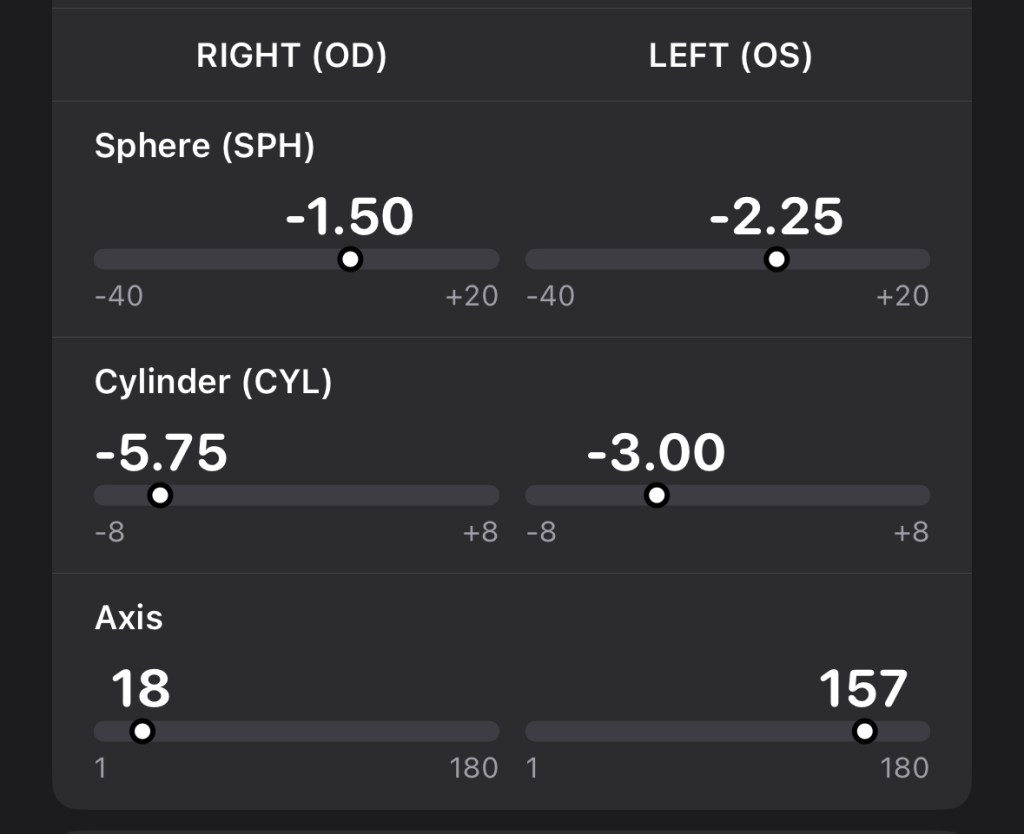
    My vision prescription as it appears in Apple Health.

    I have a very strong astigmatism which greatly impacts my vision and requires a pretty strong prescription to correct. When entering this prescription into Apple Health, it thought my right cylinder was an error. Let that sink in. I already knew from the demo they didn’t have my prescription in store, but I checked on ZEISS’s website and they confirmed that they cannot produce optical inserts for my prescription for use with Apple Vision Pro. And since you need a valid prescription to get ANY inserts, I am SOL. Apple also doesn’t currently allow for any third party inserts either, so that isn’t an option.

    My astigmatism is also so severe that soft contacts are not available. I’d have to wear hard lenses and Apple Vision Pro doesn’t support hard contact lenses. It dosen’t really matter how you slice it- if I were to get Apple Vision Pro, I could use it, but I would not be able to see anything. It’d be worse than using any other Apple device I own.

    So I do hope that Apple and ZEISS are working to support a greater range of prescription lenses and/or making adjustments to future versions of Apple Vision to allow for people with such sever vision issues to more effectively use the device in the future.

  • Apple In 2023

    I’ve been looking at all the products and announcements Apple has made in 2023 and have been thinking for a while about what the overall trend was. What did Apple focus on? What did they not focus on? What is the direction Apple is being steered in? After sitting with these questions, I think I found an answer.

    2023 was bookended with announcements to the Mac product line. January brought us the M2 Pro and M2 Max chips. These chips powered new MacBook Pros and a new Mac mini. Oddly enough the year ended with M3, M3 Pro, and M3 Max in the same MacBook Pros. Even in the middle year we got an updated Mac Studio and Mac Pro with M2 Ultra chip. macOS Sonoma is one of the nicest upgrades the Mac has gotten in a while too. Don’t get me wrong, it’s not revolutionary, but the features and improvements it does bring are very nice and utilize the neural engine inside Apples custom silicon well. The state of the Mac product line overall is very, very good. There’s one or two products or product configurations that I raise an eyebrow at, but nothing stands out as outright bad in the current lineup. I’d entertain the argument that 2023 was the biggest year for the Mac since 2020.

    On the other end of the spectrum, the iPad got absolutely nothing in 2023. This is the first year in a very long time (maybe ever) that no new iPad was released. In fairness, the iPad did get a few bones thrown at it. The most noteworthy iPad news from 2023 is that Logic Pro and Final Cut Pro came to iPad (which Final Cut users did not particularly enjoy), and Apple created a new Apple Pencil that supports USB-C to replace neither of the previous Apple Pencil models and rather sit alongside them. So in an already convoluted iPad hardware lineup and a convoluted accessory lineup, Apple just further fuels the fire with this new product. The only way this new Apple Pencil would make sense is if Apple cleaned up the iPad lineup. But they didn’t. And don’t get me started on the state of iPadOS. We are 4 years removed from Apple giving the iPad it’s own dedicated OS that is supposed to combine the best of iOS and macOS and it continues to feel like a grab bag of iOS features from the previous year. iPad sales continue to drop as well due to the high prices of most iPad models, the lack of compelling software, and expensive accessories. By far, this was the worst year ever for iPad.

    I’d say the iPhone had a good year overall. Much, much better than last year. iPhone 15 and 15 Plus feel like much more complete products than the iPhone 14 and 14 Plus last year did. And the same goes for the iPhone 15 Pro and 15 Pro Max as well. The new titanium frame makes these devices much lighter and addresses the fingerprinting complaint people have had for years on the stainless steel models. The A17 Pro chip is also a big improvement over last years A16 chip, especially in the graphics department. Indeed, it feels like Apple is both starting to find a stride with their chip design and a wall with what TSMC is able to manufacture for them. The A17 Pro (and M3 as it uses the same IP) are built on a 3nm design that has yet to be refined. There were multiple complaints at launch of iPhone 15 Pros overheating and there has been some growing concern over what the M3 could mean when it inevitably hits products without a fan like iPad Pro and the MacBook Air.

    Apple Watch had a modest year. The Series 9 came out with some nice, if immature, improvements. These all migrated over to the Ultra 2 as well. No changes to the SE this year, but I’m sure we’ll see a new SE in 2024. Despite the modest year in terms of hardware, software was a totally different story. watchOS 10 brought a complete overhaul to the Apple Watches software and it truly does feel new and exciting.

    Apples services had a somewhat quite year as well. Apple TV+ continues to grow in popularity despite launching less content in 2023 than 2022. Apple added new storage tiers to iCloud+ as well for the first time in a long while. Apple Fitness+ also got new features like being able to set a workout routine. Apple Podcasts can now let you access third party subscription content by linking it to those apps. Perhaps biggest of all was the launch of Apple Pay Later (Apples take on BNPL) and Apple Card Savings Accounts (a HYSA for Apple Card holders). It wasn’t all good new though. Virtually all of Apples services got some kind of price hike and we did bid farewell to one; the Apple Music Voice Plan.

    But by far the biggest announcement of 2023 was Apple Vision Pro. Apples next big product since Apple Watch. And the first since the iPad to not be an iPhone accessory. I did a full breakdown of the announcement here if you want to check it out. While the product won’t launch until 2024, it does to me signal a recommitment to wearable technology. Apple has some of the best wearable technology in the world like Watch and AirPods, and Vision Pro looks to be an ambitious addition to that category.

    Overall, when I look at 2023 and consider what direction Apple is going in, I think there are two trends. The first is that Apple isn’t just a technology company, they are a processor company. This isn’t new, Apple has been pushing the limitations of the ARM instruction set and their own custom chip designs for years, but 2023 feels like the year where they are advancing as fast if not faster than foundries can keep up. The second is that Apple is rapidly moving us toward the post-PC era. An era of computing that is defined by powerful processors that are both mobile and isn’t limited by a screen. One that is wearable and yet still personal. Devices like Apple Watch and Apple Vision Pro are likely to play a big role in this next era. Apples investments in Vision Pro now and over the past decade with Watch give them a leg up over the competition.

    2023 was overall a great year for Apple and I can’t wait to see what 2024 brings!

  • Apple Watch Series 9 Review: 3 Months Later

    So I’ve been wearing my Series 9 for a little over 3 months now and many of my thoughts on the Watch have changed from initial review in September. At the time, I titled my review as “Coming Later This Year”, due to so many flagship features of the Series 9 not being available at launch. Since then, Apple has made good on those promised software updates and the Series 9 is now doing everything it was advertised as being able to do in September. 

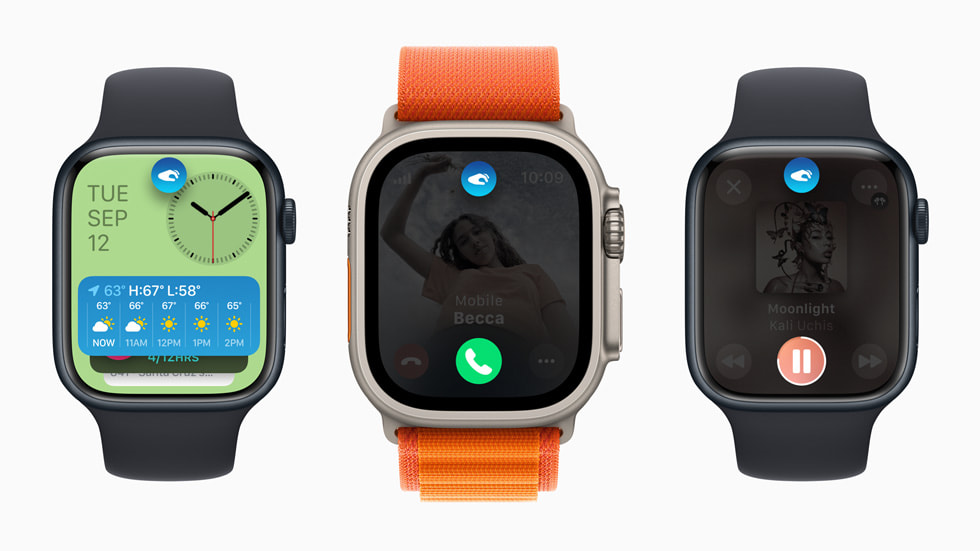
    So let’s start with the big one; Double Tap. This came in October with watchOS 10.1. Apple advertises this as a “magical way to interact with Apple Watch” and I think that oversells the feature a bit. For some specific functions, I do find it genuinely useful. If a song starts playing that I don’t like, rather than raising my wrist and using my other hand to tap the skip button, I can just raise my write, Double Tap, next song plays. It’s much nicer. Similar for ads in podcasts. Ad starts, I just Double Tap until the ad is over. Sitting at my desk at work and I want to quickly check the news or see if I have any missed message? Quick little Double Tap to bring up and scroll the Smart Stack. This one isn’t quite as “magical” as the other examples as if I want to open Messages or News, I then have to use my other hand to tap the screen. 

    Overall I fond Double Tap to be a handy if not always helpful feature. It doesn’t work everywhere, and third party apps currently have no way to use the Double Tap feature, but I do think Double Tap has a future if Apple continues to support it and update over time. My other hope is that Apple makes the feature more customizable. From the Watch face, the only thing Double Tap does is bring up the Smart Stack. I would personally find it much more helpful if Double Tap brought up Notification Center. It’d also be nice if I could set Double Tap to dismiss notifications, rather than do whatever the first action prompted on the notification is. The best way to tell if a feature is good or not, is to take it away and see if you miss you. When in Low Power Mode, Double Tap is turned off. And when I did have my in Low Power Mode, I did try to use Double Tap and missed it. With time, I could probably adjust to not having it, but I do like it enough that I’d rather Apple keep building on it. 

    The other big feature that more recently got added with watchOS 10.2 is Siri integration with the Health app. This allows users to use Siri to request information from the Health app and be delivered to you. It works the other way too, for some health related items, you can use Siri to log that information into the Health app. In a press release, Apple outlined some (maybe all) of these requests. They generally focus on information that could be viewed from the Activity, Workout, Sleep, and Medications app. You can use Siri to log some information that isn’t associated with a specific app though, like your weight, which is nice. 

    I tried to use Siri to log some water intake recently and the request plain didn’t work. I tried “Siri, log 33.8 fluid ounces of water” and Siri thought I was trying to take a medication. I also tried “Siri, I drank 33 fluid ounces of water today” and Siri basically told me that she couldn’t log water to the Health app on Apple Watch and to try doing it on my iPhone instead. Why can I use Siri to log my weight on Watch and not my water intake? I have no idea. Adding insult to injury, there’s not even a Siri Suggestion that pops up on my iPhone to ask if I want to do this action. So if Apple took this feature away, I’d honestly be none the wiser to it. It’s a good idea, but needs to work consistently across all Health categories to be actually useful. 

    I do find it amusing how in the press release for this feature Apple hilighted asking Siri for information the Watch would have no knowledge of without an additional accessory or piece of hardware being used. Like asking for your blood glucose level or blood pressure. I hope this is Apple laying the foundation for these kinds of health sensors to be added to Apple Watch in the coming years. 

    A few other pieces to go over. The improved brightness of the display. I haven’t actively noticed it at any point in the last few months. Screen brightness on Apple Watch is still controlled automatically via software. The display is also able to get dimmer than before and, unsurprisingly, I haven’t actively seen this difference either. 

    My thoughts on the S9 system in package (SiP) has been largely unchanged since September. The S9 is a pretty notable improvement over previous generations of SiPs Apple has used. Apps are still speedy to load and watchOS has never dropped a frame or slowed down once. Some machine learning (ML) tasks like handwashing detection that use the improved Neural Engine in S9 are better than they were previously. I think the S9 lays a great technical foundation for Apple to build on in future version of watchOS. 

    One of the new components of the S9 is the 2nd generation ultrawideband chip (U2). My thoughts on this have also not changed much since September. This chip enables precision finding of your iPhone 15 or 15 Pro. It also lets it show the Now Playing widget in the Smart Stack when you are near a HomePod mini or 2nd generation HomePod. This feature was added in watchOS 10.2, but I can’t tell if the feature is working correctly or not. I’ve never seen the exact widget Apple shows in the marketing material, but when my Apple TV (which is connected to a 2nd generation HomePod) is playing, it does show up in the Smart Stack. I just don’t know if this is using the U2 chip or if some other Home/AirPlay magic is at work. 

    I will continue to criticize Apple for limiting things like precision finding to models with U2 and not bringing this feature to the Apple Watches with U1 where it would absolutely work. I know this because iPhones and AirTags only have the U1 chip and it works great. 

    But that really is the Apple Watch Series 9. Some good, if not fully baked improvements. It’s the best Apple Watch you can (hopefully) buy. If you have an Apple Watch Series 6 or older, I think you’ll appreciate the upgrades. And for those with a Series 4 or SE who may be considering an upgrade, you definitely won’t be disappointed. 

    I do stand by my greater criticisms of the Apple Watch as a platform however. This is probably worth a full post to explore more in depth, but the first era of Apple Watch (Series 0-3) was defined by Apple adding core technologies to Watch. The second era (Series 4-6) was defined by Apple adding health sensors and quality of life improvements. We are now in the third era (Series 7-9) and it’s so far been defined by Apple making the Watch slightly better every year in some way, but without moving toward an end goal. Is it making Apple Watch an independent wearable computer? No. Is it making Apple Watch a health device? No. It’s hard to tell what Apple really wants the Apple Watch to be at the moment. 

    But for whatever the Apple Watch currently is, the Series 9 is the best yet.

  • Apple 2023 September Event- Wandering

    Apple 2023 September Event- Wandering

    I know I’m late to this party, but I figured I’d talk about the most recent September Apple Event. This was a pretty small event with only really two product categories getting any kind of an update- Apple Watch and iPhone. 

    Let’s start with Apple Watch. This year we got the Apple Watch Series 9 and Apple Watch Ultra 2. Neither of these devices are revolutionary over their predecessors from last year, least of all on the outside of these devices. The improvements Apple is focusing on are on the inside. 

    This year Apple is introducing the S9 system in package (SiP) with dramatically improved performance to make the act of using and interacting with the Apple Watch better. While technically the Apple Watch gets a new SiP every year, it very rarely does much more than add support for that years flagship health sensor. For example, the S4 and S5 SiPs are identical other than the S5 having components in the package that support the compass and always on display drivers. But this year we’re moving from Apples 5th generation silicon that debuted in 2020’s Series 6 to a much speedier 6th generation silicon. This should translate to things like faster boot-up times, loading in applications like the App Store or Memoji, and loading music or podcasts from the system should also be faster. The next generation neural engine in the S9 SiP also allows for a semi-new gesture coming in October called Double Tap. This will allow the Watch to detect when you tap your thumb and index/middle fingers together to perform a quick action based on what is on the screen. For example, if you get a phone call and can’t use your other hand to press the answer button or use Siri to answer, you can double tap your fingers and answer the call. This is almost identical to an accessibility feature called Assistive Touch that was introduced a few years ago in watchOS 8. The main difference is this is a double tap with your fingers, rather than clenching your hand. Double Tap does a single action, whereas the current Assistive Touch options are designed to not only do a certain action quickly, but also allow users with a disability to take greater control of their Watch. The final main difference between these two is that Assistive Touch is somewhat unreliable in my experience. When I used it upon its release, I almost never got the feature to work. In theory, the S9 is supposed to make this much more reliable, but that remains to be seen. Early impressions from the Apple hands on at Cupertino were positive, so there may be hope. No doubt Apple heavily drew inspiration for Double Tap from the Assitive Touch, but I do think they are relatively distinct. 

    This is something I want to focus on more in a separate post, but there is also a second generation ultra wideband chip inside both new Apple Watch models. Apple does not refer to this second generation ultra wideband chip as the U2 chip, however I will. This chip offers some features that have previously only ben on iPhone like per scion finding for iPhone 15 and 15 Pro (and future models with the U2 chip). Apple is also developing a suite of features for the U2 chip and HomePod that enable things like media suggestions when you get close to one and Handoff between the two. I’m not totally sure why the U2 chips is required for this, nor why some features are backwards compatible with U1 enabled devices and not others, but it seems Apple is finally building a platform of features that can work across the Apple ecosystem powered by this U series of chips. 

    All these features are coming to both Apple Watch Series 9 and Apple Watch Ultra 2. Like I previously said, there is nothing revolutionary here, it’s just the next evolution of Apple silicon taking root in one Apples products. I did purchase the Apple Watch Series 9, so please look forward to a review of that. 

    There a few disappointments with the Series 9- there is no dual frequency GPS that was introduced in the Ultra last year and I had hoped would work its way into the regular model this year and eventually the SE. The temperature sensor from last year also has no new functionality or improvements, that holds true for the ECG, Blood Oxygen, and Heart Rate sensors as well. To a certain extent, it feels like Apple has added these features to the Watch to claim they have the most advanced wearable fitness device on the market, without also pushing to make them better or combine them to do something innovative via software. 

    The iPhone 15 and iPhone 15 Plus. Remember the iPhone 14 Pro from last year? Take that, make it aluminum, remove a camera, add some color, put a USB-C port on it and you’ve created an iPhone 15. There is a little bit more to the story, but not much. The aluminum frame is now slightly curved at the edges, so it still is a very flat design, but it should conform to your hands a little bit nicer. The main camera sensor is the same as the iPhone 14 Pro, so photos should be a bit better. There is some software trickery Apple is doing to make taking portrait photos better, but as far as I am aware, this is iPhone 15 exclusive despite the iPhone 15 having no unique hardware or software to make this exclusive. The glass is no longer dyed to be a certain color, it is instead part of the glass fabrication (for lack of a better word) so the colors are even thought the whole product. I still find these iPhone colors to be too pastel and washed out to truly look good and wish we could get a return of the bright and saturated colors of the iPhone 5C and iPhone XR. And the USB-C port is just a USB-C port. Nice!

    This does mean- however- that the iPhone has finally ditched Lightning as its connection input. You can now use your MacBook charger, iPad charger, Siri Remote charger, or any standard Android charger on your iPhone. That is really cool! It’s a big transition for Apple and by extension its users, but it should be easier than the Dock Connector to Lightning was. Both of those were Apple proprietary, but USB-C is not. It’s a port that has been in use for years by other types of devices and used by a multitude of companies. The ecosystem around USB-C already exists, Apple doesn’t need to built it not collect any MFi licensing revenue. If you do need to ditch your Lightning cables, please consider responsibly recycling the cable by visiting an Apple Store or see if your local waste disposal company offers e-waste collection. 

    The iPhone 15 Pro and Pro Max are somewhat more interesting, though not substantially. Take the iPhone 14 Pro from last year and make it titanium, make some camera improvements, put a USB-C port on it and you’ve created an iPhone 15 Pro. The material change to titanium over stainless steel is greatly appreciated. Titanium is much lighter than steel, this addresses one of the main complaints Apple has been experiencing since the iPhone X was introduced and they made the switch to steel. The iPhone 15 Pro camera offers some improvements to make it better, but the iPhone 15 Pro Max gets an exclusive piece of glass over the telephoto lens that allows it to be a 5x zoom. This is exclusive to the Pro Max however. I despise it when Apple gives two identical products two different sets of features. And there are already rumors that next years iPhone 16 Pro will get this lens. It makes me wonder why Apple didn’t just wait til next year to introduce it when it could hot both sizes at the same time. 

    The final thing to note about this ears Apple Event was the focus on carbon neutrality. Apple made a big deal about this and… I just didn’t care. Carbon neutrality is important, but carbon negative is even more important. Apple doesn’t need a cringy video with Olivia Octavia as Mother Nature to quickly hit you with statistics about how Apple is doing in this regard. These videos have become common over the past few years and I am generally negative on them. Apple frequently doesn’t take advantage of the video format to do anything that couldn’t be done in a keynote slide. 

    Overall, this was a very mid Apple Event. But this is about on par with Apple’s other September Events where they introduce the same two products every year- Apple Watch and iPhone. This is the second or third time in as many years where I find myself asking, “Could this not have been a press release and been done better?” 

  • Apple Vision- TV Shows and Movie Content

    Apple Vision- TV Shows and Movie Content

    Apple Vision its an all new product category for Apple. As we look toward the launch of the first Apple Vision product next year, Apple Vision Pro, I want to look at certain aspects of what Apple showed at the reveal and take a closer look at how they could prepare their hardware, software, and service offering to give consumers the best shot at buying one. Today I want to look at entertainment. Specifically TV and movie content. 

    I think the best place to start is by examining how the expansive selection of video content we have today, The good news is there shouldn’t be any major changes. You can still open Safari and go to any website and play a video. It will open up into a window that can resized and moved anywhere in your environment. And if you have an iPhone or iPad app loaded onto your Vision device, the same thing will happen. You can open that app and start a video and resize it and move it anywhere you like. I anticipate you can take advantage of the Cinema Environment (or any other Environment) to immerse yourself in the content. So that is all nice and I think improves the video watching experience without any additional work by the developer of the app or changes to the way video is filmed or shared. 

    But now we come to what can happen if Apple does put in extra work to improve their own apps, TV shows, and movies. One of the things that Apple pointed out specifically at WWDC 2023 is that Vision Pro can play 3D movies. Based on this, I think one of the first things Apple will do is strike a deal with the movie studios to make films shot in 3D available on iTunes to purchase and watch. I think Apple will do something similar to what they did when Apple TV 4K  was launched and Apple made 4K movies and tv shows available to purchase via iTunes. Let users get the 3D version at no additional cost. At the time, this was a big deal in marketing Apple TV 4K.

    “With Apple TV 4K, viewers can enjoy a growing selection of 4K HDR movies on iTunes. iTunes users will get automatic upgrades of HD titles in their existing iTunes library to 4K HDR versions when they become available.”

    Apple did make a few mentions to the Apple Immersive Video format- a video format specifically designed for watching videos on Apple Vision. It requires the use of special cameras to capture the footage so it presents correctly to users so it will require film studios to do additional work. The good news is, Apple is now partially a film studio since they run Apple TV+. Apple not only purchases content from studios, they directly fund and do the work on their Apple Originals lineup of films. This positions Apple perfectly to adopt the Apple Immersive Video format for all their upcoming TV+ shows and movies, but gives Apple an opportunity to get other studios to adopt the format as well. It even sounds like Apple is actively working on this as Sigmund Judge has indicated the upcoming Apple TV+ movie Monarch: Legacy of Monsters is being filmed with this format in mind. If the partnership with Disney holds up, we could see a lot of movies shot in this format and be an attractive way for consumers to watch tv shows and movies.

    I do want to make an additional note here: For those who have seen For All Mankind (which is hopefully everyone as For All Mankind is an excellent show) remember ahead of season 2 premiering Apple released the For All Mankind Time Capsule app which gave users an AR experience to catch up on the events that occurred in the 10 years between seasons 1 and 2. Imagine if Apple does more of these kinds of AR bonuses for Apple TV+ subscribers. It would further immerse people into their favorite shows all on one device. Based on the concept video for Disney+ coming to Apple Vision, it seems like Disney has the same kind of idea. 

    I think tv shows and movies will be one of the “killer apps” for the Apple Vision product lineup. But this is one of the products long term strategies. No average consumer is going to make a reservation at an Apple Store and spend $3,500 just to watch Avatar in 3D at home and experience the For All Mankind Time Capsule. But in a few years as more video content is produced for Apple Vision and Apple and Disney and others come up with the best way to expand the entertainment universe using AR and VR in meaningful ways and the Apple Vision Air (or whatever it gets called) costs $2,000, it becomes much more attractive. 

  • macOS 14 Sonoma Preview

    macOS 14 Sonoma Preview

    At WWDC 2023, Apple announced the next version of macOS. And with it, came a new name based on a location in California. In my prediction post, I had hoped that Apple would go with macOS Sonoma. And in a surprising turn of events, I was spot on! Here is a preview of macOS 14 Sonoma. What changes are being made, what devices will support the update, and what things can Apple do to continue to make macOS even better?

    This preview is based on my usage of macOS 14 Sonoma developer betas 1 and 2 using an 14” M1 Pro MacBook Pro. This is beta software and features are subject to change.

    So what has changed? Not nearly as much as any other Apple OS. Which makes sense, macOS has been around for decades and the personal computer is a very, very mature platform. The room for changes and improvements just isn’t as big as most other platforms Apple maintains. But there a few changes I do want to talk about. 

    The first has to do with widgets. This year, Apple is returning the ability for users to interact with widgets directly. In 2020, with macOS Big Sur, Apple completely revamped widgets on their platforms and as part of that overhaul, widgets could only display content from its associated app. Clicking on it would only open the app itself. Now, in a move to undo that overhaul to widgets, you can now interact directly with widgets. The most common use for this right now is with Reminders. You can pull up Notification Center and scroll down to your Reminders widget and mark a task as complete. It is nice, but does make me wonder why Apple removed the ability to interact with widgets in the first place. 

    Widgets can also now be placed on your desktop! This was another feature I wanted back in my predictions post and it is certainly nice to have. I can see some users placing a ton of widgets on the Desktop and using it as its own workspace. Personally, I keep a Photos widgets to add a touch of personal flair to my Desktop as I only use the built in wallpapers. 

    The final change to widgets is really, really cool. You can now add widgets to the Desktop or to the Notification Center that originate from an app on your iPhone. The Crumbl Cookie app for example, has a widget on iPhone that lets you see this weeks selection of cookies and tapping it lets you place an order. I can add that Crumbl widget to my Mac to see that menu right on my desktop. No app required on the Mac. It is a great evolution of the Continuity features Apple has been introducing over the past nine years. While this is the only use of this iPhone-to-Mac extension technology, I am excited to see how it evolves next year. Maybe we can finally get iMessage Apps on the Mac. 

    The next big area to focus on is video conferencing improvements. While I will be using FaceTime as the frame of reference for these features, they will work with any video app like Zoom, Webex, or even OBS without any work by the developers of those apps. All these features are built into the way Apple passes camera data from the OS level to an individual app. One of these is Reactions. You know those iMessage effects like balloons or fireworks? Those are coming to video calls! You can activate them with hand gestures. If you give a thumbs up in a video call, it’ll add a big blue thumbs up to your background. Or if you give two thumbs up for a second or two, it’ll trigger a fireworks effect in the background of your call. It’s really fun and will certainly make your video conferences much more enjoyable!

    There’s also some changes with how displaying content works. You can share your screen like normal, or you can put yourself into a little bubble that just floats on top of the screen you are sharing so everyone can see what you are sharing, but not lose track of you. Or, even better yet, you can use a new Presenter Overlay to share your screen and put yourself on top of it so you can point to it like a whiteboard all while staying in frame. It’s really, really nice. 

    Finally, web apps are getting some improvements on Mac this year. I did not see Apple ever embracing web apps, in fact I foresaw them going to war with them, but here we are. On most any website, Twitter for example, you can go to the File option and hit “Add to Dock” and it’ll reformat the website as a web app and save that website as an app icon in your Dock. It’ll even open it up just like an app and allow that website to send you notifications. It’s really impressive. 

    There are several more changes than what I’ve covered here as well. Many of these changes are not macOS exclusive however and make more sense to put into different previews. Apple has improved the way users can work with PDFs in the Notes app, for example. Which is nice, but I really just want Apple to create their own version of Adobe Acrobat. Maybe even build that into Preview. There are many gaming related projects that Apple is launching with Sonoma, but I am not able to test those yet as the technology has only been available to developers for a few weeks now. But the early reports from other journalists and developers make it sound promising. 

    Overall, I like these changes. I don’t think macOS Sonoma will go down as one of the best or biggest updates the Mac has ever gotten, but I think people will appreciate the work Apple is putting into the usability and quality of life improvements of the software. If you are like me and your job is spent in meetings all day, a lot of the video conferencing changes are quite nice to have. And Apple is keeping the Mac an open system by allowing you to install and use any software you’d like- weather it be a modern fully optimized Apple Silicon app or one running through emulation in Rosetta 2 from the Intel days. Is there an app that you enjoy on iPad and iPhone that you like to have on your Mac? It’s available in the App Store. Even if you need a web app, Apple is now making that experience even better in Sonoma. Combine all of this with the amazing Apple Silicon chips Apple has in their machines and I can confusedly say that the Mac really is the best productivity machine you can buy. 

    There are some caveats to macOS Sonoma however. It will only run on a handful of Mac models. In general, you need a Mac from 2018 or later. Apple is clearly working to drop their lineup of Intel Macs as quickly as possible. And a lot of the video conferencing features specifically, though there are more, will not be coming to the Intel Macs in the first place. Meaning fi you do have an Intel Mac, this update may just not be worth it to you which is a shame. 

    There is plenty of room for improvement in future versions of macOS. The big one is the growing number of missing apps compared to the iPhone and iPad. Great examples include the Translate app, the Health app (which is only this year coming to iPad), the Fitness app, and even Tips and Wallet are all missing. There are still a lot of missing widgets as well. For example, Books and Music are missing. You can’t even add the iOS version of these widgets to you Mac either. It makes switching between all your Apple devices just a little bit harder and a little bit more annoying. I hope in future versions of macOS Apple does work to make switching between the different platforms that much easier. 

  • tvOS 17 Preview

    tvOS 17 Preview

    Two weeks ago at WWDC 2023, Apple unveiled tvOS 17. This free software updated will be coming out to all Apple TV users later this fall, but I have installed the developer beta on my own Apple TV to test it out and provide this preview for you all. 

    At the time of writing, I am currently using the Apple TV 4K (2nd generation) with the A12 Bionic chip and I am currently using tvOS 17 Developer Beta 1.

    So what will be changing in tvOS 17 this fall? The first thing I think users will notice is the updated Home Screen grid. The new Home Screen layout changes the grid from being 5 app icons wide to 6, allowing you to see more apps on your TV screen at once. It also allows you put an additional app in the Top Row to quickly jump into content if the chosen app supports that feature. 

    The second thing users will notice is the new Control Center. There’s a lot new going on with the Control Center, so I’ll do my best to break it all down. On the Home Screen it now persistently shows the time and current user- which is great. When the TV button is pressed and held, it’ll now drop down from the top right of the screen rather than taking over the right fifth or so. Unlike the old Control Center, where everything was on one large page, the new Control Center features multiple pages. On the left is a spot to control your Home. View your camera feed or activate Scenes. In the middle is the default area for your system controls, but I will come back to this in a moment. And on the right side is where you can switch between users. If you have anything playing, like music or a movie, an additional Now Playing option is added on the far left where you can see what is playing and from what app. Clicking on it will take you right back to that app. You can also pause or skip forward right from Now Playing as well. 

    But back to that updated default area for system control. You now have 9 options all on this nice little platter. By far the biggest option available to you is to power off your Apple TV. It is nice to have, but it is also interesting to see Apple transition from wanting the Apple TV to be this always on device connected to your TV ready to AirPlay content or open an app at a moments notice to a device you now turn on and off. You can also AirPlay to a different device if you so choose like AirPods, a Mac, a HomePod if its not the default already. It’ll also show what internet you’re connected to, even if you are connected via ethernet. You can also turn on Do Not Disturb but I’m not sure what this does at the moment as Apple TV doesn’t send notifications and it dose’t share that status across your other devices. That may be a bug though, not sure. You can also set a sleep timer now, which I’m sure will be a greatly appreciated feature. It can be set for 15, 30, 60, or 120 minutes. There is no option to set a custom timer. Then we get into the smaller options, like settings for paired game controllers, accessibility settings, system restrictions, and a shortcut to the Search app which I’m sure somebody out there uses. 

    I think it is now time to move onto some new apps. Or app- singular. This year FaceTime will be coming to Apple TV. This works in a really fun way. You open the app and it prompts you connect to an iPhone or iPad and then it’ll open a Continuity Camera session putting your other devices video feed on the big screen. You can start a call from your recent FaceTime call history or search for another contact. You can turn Center Stage on or off, Portrait Mode on or off, and you can turn Reactions on or off. It all looks and works pretty nice. 

    You can even begin a SharePlay session from your FaceTime call and keep everyone on the call in a split view with whatever content you are SharePlaying. It’s really really cool and I cannot wait to use this feature with my family.

    There are other new features concerning audio enhancements and VPN usage that I am unable to test as there is, to the best of my knowledge, no HomePod Beta Software for developers. And as VPN support will require an app download and no VPN apps are able to be listed on the tvOS App Store until later this fall, I also cannot test that. 

    The other thing I wanted to note is that I cannot confirm if all of these features will be coming to all Apple TV models. I have been using my second generation Apple TV 4K, but I do worry about the Apple TV HD and its ancient A8 chip with features like FaceTime and SharePlay. That’s a lot of system resources for what is basically the equivalent of an iPhone 6 to handle. Especially when iOS 17- which tvOS is forked off of- is only coming to devices with the A12 chip. 

    So overall, I am very positive about these changes. I like the new Home Screen grid and the redesigned Control Center is very nice. FaceTime on the Apple TV looks to be implemented in a really nice, social way. And it is great that all Apple TV models will get at least some improvement even 8 years later. And the features or changes I can’t test do sound good on paper. This probably is going to be the biggest tvOS update since tvOS 13. 

    However, I do wish that Apple had done a little more here. Multiuser support is unchanged- it remains as mildly frustrating as ever. Though it is easier to see whose account is being used which is a slight improvement. There still is no Screen Time support or additional profile account protections for adults or kids. I do feel like Apple addressing the long-distance social aspects of TV is great, but I hope next year they can focus more on the in-home social aspects of TV.