
18.1- Text Based Tools
It has been over a month since iOS 18 released to the public and since the iPhone 16 launched. iPhone 16 was billed as ‘the first devices built from the ground up with Apple Intelligence’ so this should make your device feel much more complete. At WWDC, Apple Intelligence was sold as ‘a service to help you get things done effortlessly’. And we now finally have it! Or at least, some of them. Apple is slowly rolling out Apple Intelligence in waves and this is just the first of several. This going to be a slow rollout. The vast majority of Apple Intelligence features first detailed at WWDC and at the iPhone 16 reveal won’t be available until next year. So iOS 18.1 primarily just brings what can be described as the text based tools to iPhone, iPad, and Mac. So let’s go through these first few features and discuss how helpful they are.
Writing Tools-
These are the main draw of this update. These tools are meant to help you proofread your text, rewrite the text, adjust the tone of your text, and help you summarize your text, everywhere you can input text in iOS, iPadOS, or macOS. It’s not limited to Apple apps.
Writing Tools encourage you to summarize and re-write text that has already been written. Very little of the Writing Tools are actually generative like ChatGPT is. With a few exceptions, you cannot use Apple Intelligence to generate text. It will only re-write or summarize what has already been written.
If you want to make an email you wrote shorter or sound more friendly, you have to manually select ALL the text from the email you want Apple Intelligence to rewrite or proofread and select the Apple Intelligence icon and select what you want it to do. There is no generative or proactive way to do this so you can on-the-fly adjust your language or fix errors. So there’s no real time savings going on here.
Selecting text can be awkward depending on what device you use. If you’re using a Mac, this is pretty easy. People have been selecting text on the Mac from many different apps for decades. But on a device like iPhone, this can be much more challenging. Getting the Apple Intelligence icon to even come up. Sometimes the Apple Intelligence icon will popup, but not always. Many Apple Intelligence tools are just hard to find — excluding the Notes app which has a dedicated button for some reason. Some other apps like Mail have one too, but again, it’s hidden behind an option and among many other icons. It doesn’t really stand out.
Once you’ve done your action, it replaces the text you selected to re-write without a way to easily compare to the original and see what has changed or describe a change you want Apple Intelligence to make to refine the rewrite (despite promotional images showing this as an option).

You have to either keep the changes and re-select the text, click the ‘try again’ button, or undo the Apple Intelligence changes and make some text adjustments you want, then re-select the text and do the whole thing over again. It’s not very intuitive nor easy to use, and ends up being more of a time sink than just re-writing the text yourself.
Since the start of the 18.1 beta, I have had to go out of my way to try using these tools. My biggest problem is that none of these tools are proactively presented, nor are they very useful or helpful. For being the headlining feature of this update and the first of the Apple Intelligence suite of features, I think these are among the worst set of tools available.
Summarize Notifications-
This is probably my favorite feature from iOS 18.1. If you have 2 to 3 notifications from a single app, it’ll stack them together and summarize the contents of those notifications into a short summary. Tapping the notification stack expands out the full notification. If you have a notification that can contain a lot of text, like a Teams message, that message individually will be summarized. This is a really nice feature and I have enjoyed getting the main point of everything without needing to look at everything. This carries over to watchOS as well for notifications that originate from iOS and are mirrored to Watch. Native watchOS notifications won’t be summarized.

The downside is if you get more than 3 notifications from the same app, Apple Intelligence will just give up and do what it’s done in iOS 17 and earlier and just display the top message and say ‘+3 more from Mail’. I don’t know why the limit is 3, but it seems to be for some reason. These summaries are usually pretty accurate, but not always. Overall, I like this feature a lot and find it to be the most useful and helpful of the suite.
Email Summaries-
Similar to Notification Summaries, these are alright too. Tap the summarize button in Mail and it’ll summarize the content of the email. This are usually fine, there are some issues with phrasing or conflicting information but you can usually get the idea.
Like Writing Tools though, the worst part is how hidden this feature is. You have to tap on an email, swipe down, tap the summarize button, wait 5 seconds, then get the summary displayed to you. It’s usually not faster than just reading or skimming the email yourself.

Reduce Interruptions Focus-
This feature works in 2 ways. There’s a dedicated Focus mode and a Reduce Notifications option that can be turned on for other Focus modes. The goal being that it uses Apple Intelligence to help determine if a notification is truly important or not.
The Focus Mode itself works in that it certainly does reduces the number of notifications I get; it is nice to switch on an hour or so before I go to bed and it works well to help me wind down and distance myself from my phone. As an option for other Focus modes, it kinda sucks. I’m not totally sure it works to be honest. In my Personal focus, I don’t allow messages from certain work contacts, but it also silences all my other contacts that come through normally and I would want normally. So I end up missing messages from my mom or sister for example and that can be really annoying.

New Siri UI-
This is a weird one. Siri is mostly unchanged from before, but with a screen wrap animation.

This new Siri animation is fine. I find it to be slower and less responsive than the orb, but it kinda looks nice? I don’t know, it’s fine. No strong feelings. I do have strong feelings on this for CarPlay though. When using Siri with CarPlay, I do actually think it’s a downgrade. It’s a lot harder to tell without looking at the screen if Siri is listening to you or not. On Mac, there is no screen animation that plays, it just displays a text box for you to type to Siri directly and the bar glows. The ability to ask multiple questions back to back and Siri remaining aware of the context is nice and better than previous versions.
Type to Siri-
This is nice. It’s always been an accessibility option, but having it built into the OS as a default is great. Double tapping the home bar can be a little awkward, but the initial glow animation after tapping once is great to show that you can interact with it in a new way to invoke something related to Siri and Apple Intelligence. It oddly doesn’t share the same Siri screen wrap animation, instead it shrinks the app you’re using and puts a glow animation over the keyboard and Siri text box.

Unfortunately, some of the auto correct suggestions are just dumb. I typed “Set a time” and Siri responded (via text) “For how long?” I began to type “15” and one of the suggestions was ounces. If I just had Siri set a time and it just asked for how long, why would it suggest anything other than measures of time? For a feature that is billed as “helping you get things done effortlessly” and “drawing on context” and “a new era for Siri” we sure aren’t off to a great start.
Cleanup Tool-
This works as long as your edits are small and in the background. The bigger the thing you want to remove and the closer to the subject it is, the worse it will do. It’s not hard to get a really bad result. I got more bad results than good ones. And the good results aren’t “amazing”. Below I’ve attached some pictures from my library using the cleanup tool to remove some elements I think people would commonly want to remove from photos. Originals are on the left, cleaned up are on the right.


Photo Memories-
This one is actually pretty good too. You can describe the type of memory you want to create and Photos will pull photos and videos from your library that meet that criteria and assemble a short video for you. The animation is top notch and it usually puts together a pretty decent result. No major complaints here. While it is nice, I don’t think it’s significantly better than the ones iOS automatically puts together for me and that don’t require Apple Intelligence to create.
Phone Call Recording & Transcription-
This may or may not be an Apple Intelligence feature, but it was advertised as one at one point, so let’s call it an Apple Intelligence feature for the sake of argument. It’s bad. Like, REALLY bad. I am fundamentally opposed to Apple even allowing phone call recording for all the privacy and legal concerns it presents. Apple has tried to address this – Siri will announce after you start the call that the phone call is being recorded, and that plays for all parties on the call- but there’s no way to opt out beyond hanging up. And if you get transferred from one party to another, I don’t know if the announcement plays again. So you could be in a situation where someone doesn’t know they are being recorded.
Secondly, in the testing I did the transcript was fine, but it often didn’t break it up by who was speaking. So discerning who said what was hard to do. Some whole sentences are missing. But the summary is awful. The conversation I had was about phone call recording being creepy and ending work for the day. The summary generated was… “Requests a bump on a log to collapse”. Um…
Hide Distracting Elements-
This isn’t really an Apple Intelligence feature, but where else am I going to talk about it? The animation is cool and it does work. I can hide all those annoying popup ads that prevent me from getting at the content on a website. You may be wondering why not just use reader mode? Reader mode isn’t supported on all website and sometimes destroys context around something that was written. So this feature has merit. But again, iOS isn’t doing this automatically for you. You have to hit the buttons and select the option and manually choose what to remove.
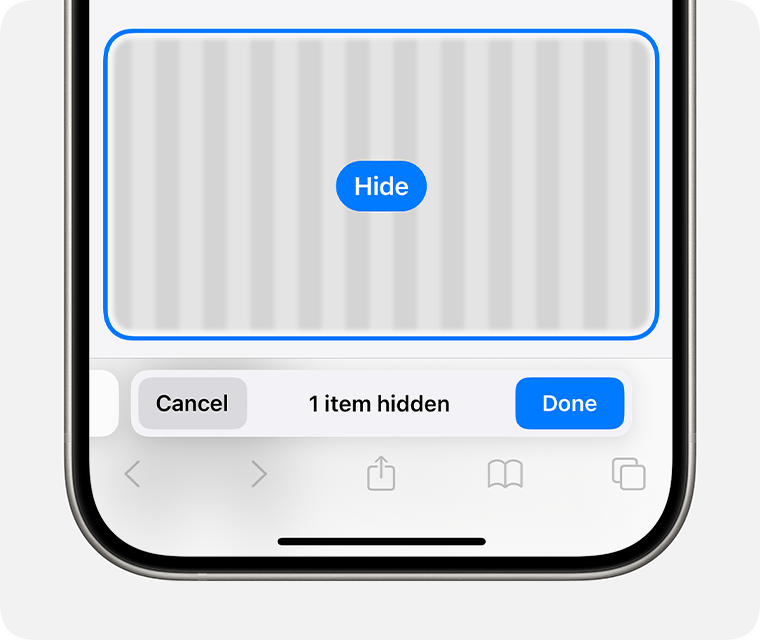
So you end up reading the whole page anyway while you decide what to remove, and by this point, what was the point? I’ve hidden all the popups for what? It doesn’t save this for if you reload the page or come back to it later. You have to go through the whole process again. It’s a waste of time.
Overall Thoughts-
I’m not impressed. All of these features do “work”. It’s not like anything is blatantly broken- with the exception of the Cleanup Tool maybe. But things certainly don’t feel finished, or tested, or well implemented. Apple isn’t doing anything new here and they aren’t doing it in a new or different way. It does all run on-device as far as I can tell, but there’s no indication when something is happening on-device or in private cloud compute (PCC). Many of these features are, in my opinion, hidden, a gimmick, and/or take more time to setup and use than just not using them at all. Maybe I’m just an old dinosaur at the crisp age of 25, but I really don’t understand a lot of these features. I don’t understand how they’re going to help people or how they provide a foundation for future Apple devices and services. I hope the next round of Apple Intelligence features are better, but I’m not optimistic.
 Soul of Apple
Leave a comment